What is the Print Info Bar?
The Print Info Bar is a section on invoices that displays specific headings and information. The system allows you to customize what prints in this area for each branch and department.
Where can I access the Print Info Bar settings?
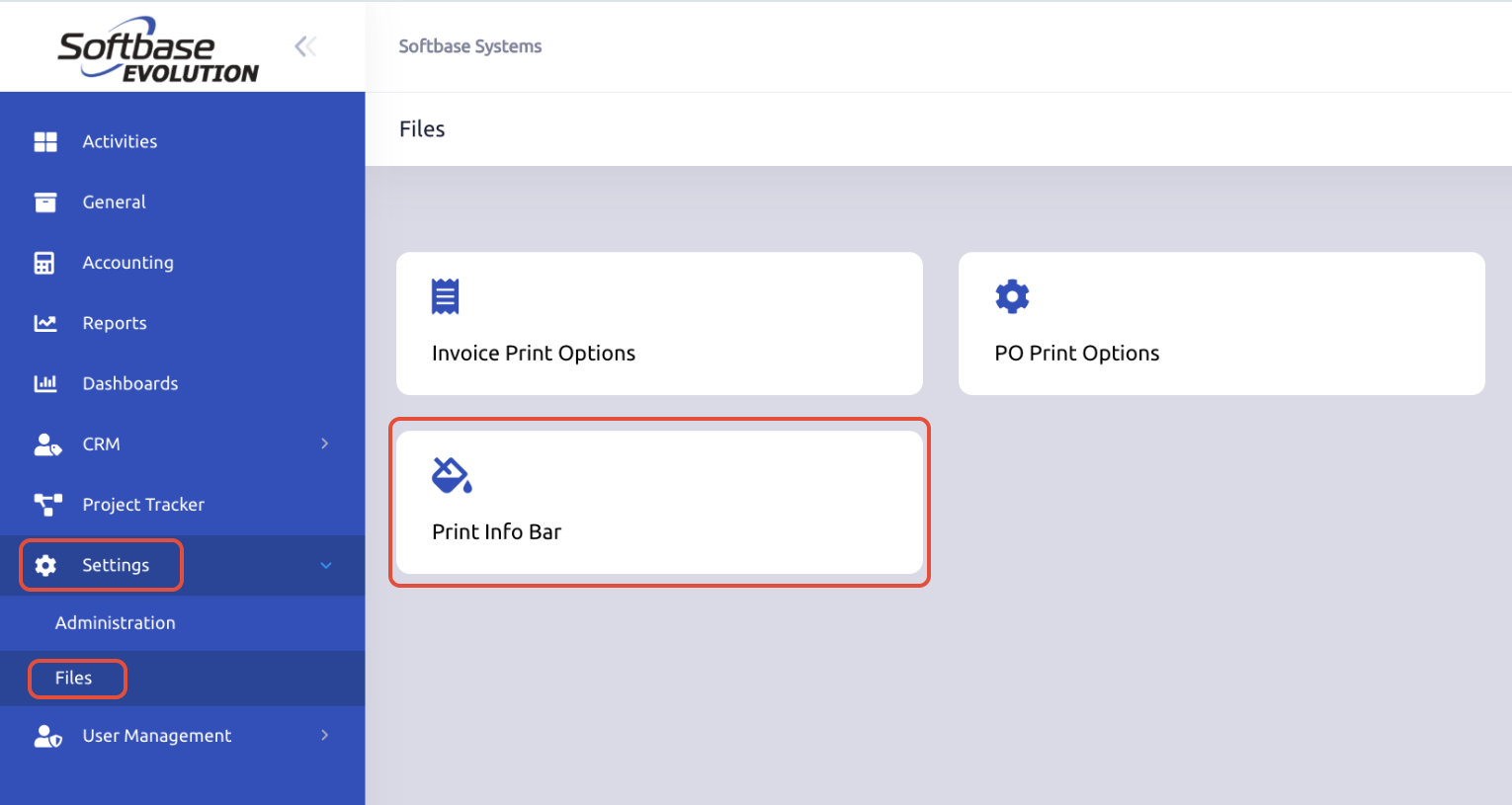
- Go to Settings
- Click on Files
- Select Print Info Bar
How do I add or edit fields in the Print Info Bar?
Editing Existing Fields:
- Search by your Branch/Department to see which fields are already set up
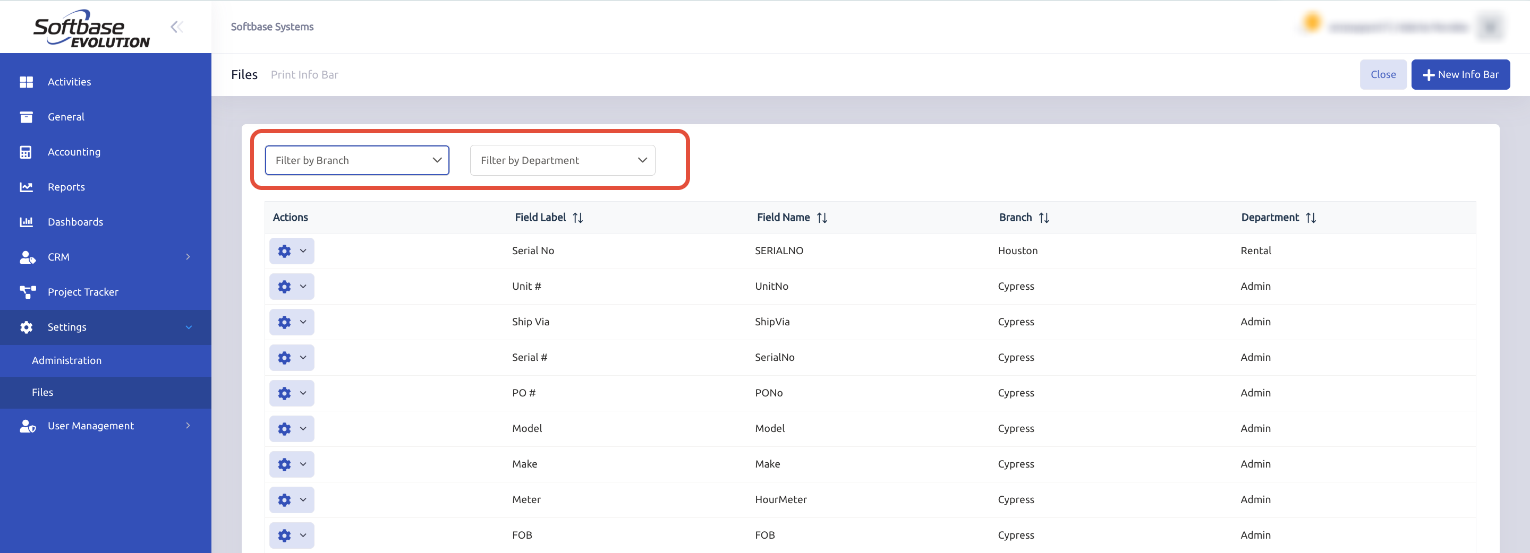
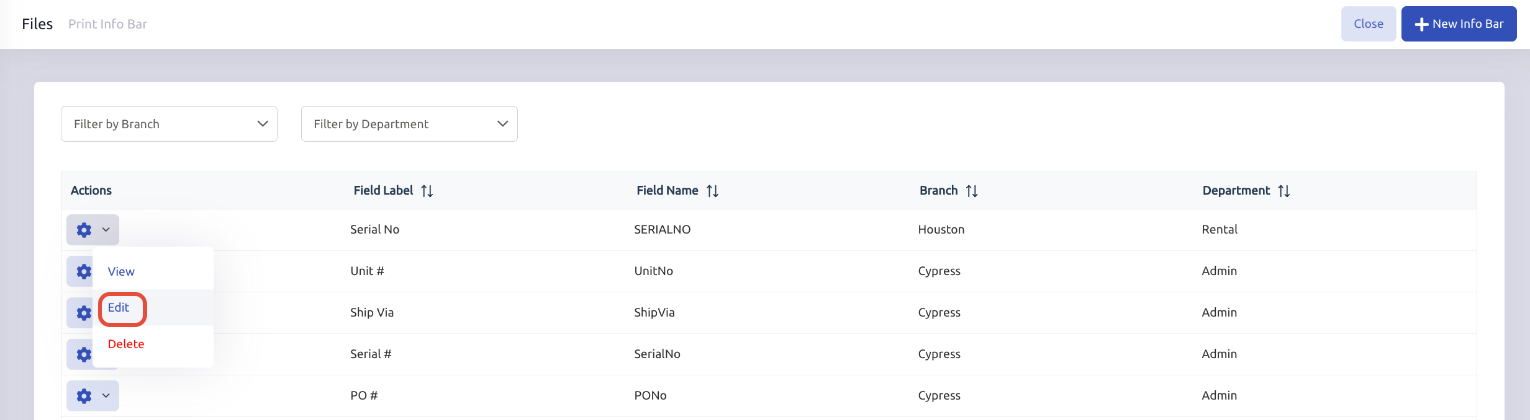
- Select the gear icon drop down next to the field you would like then click Edit.
- Adjust as needed and click Save.
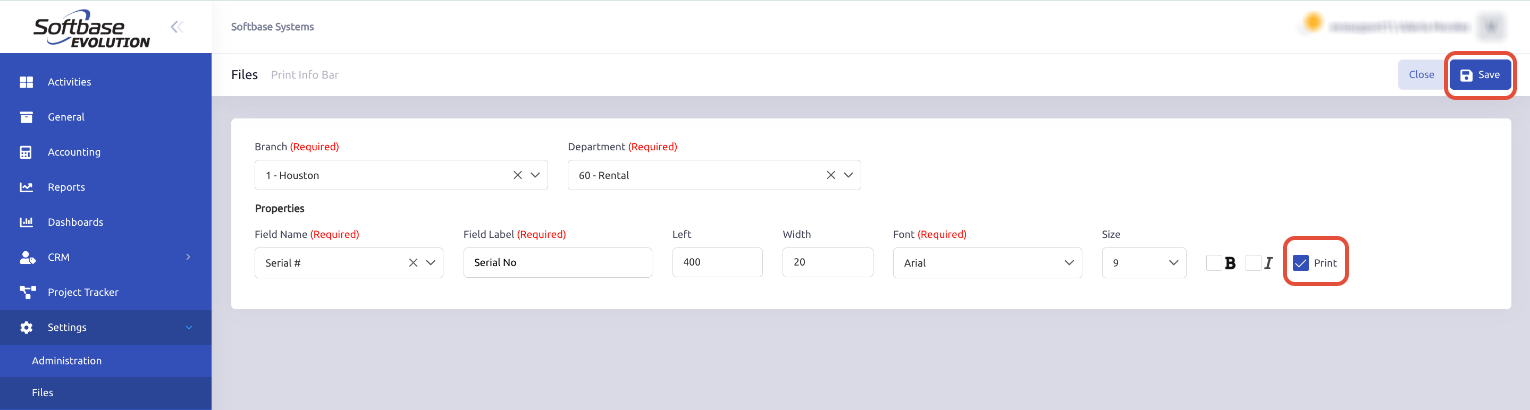
- The field will appear in your invoice preview based on the adjustments made. To adjust where the field prints or the width of the field printing, update the Left/Width fields. The values are in pixels.
Adding New Fields:
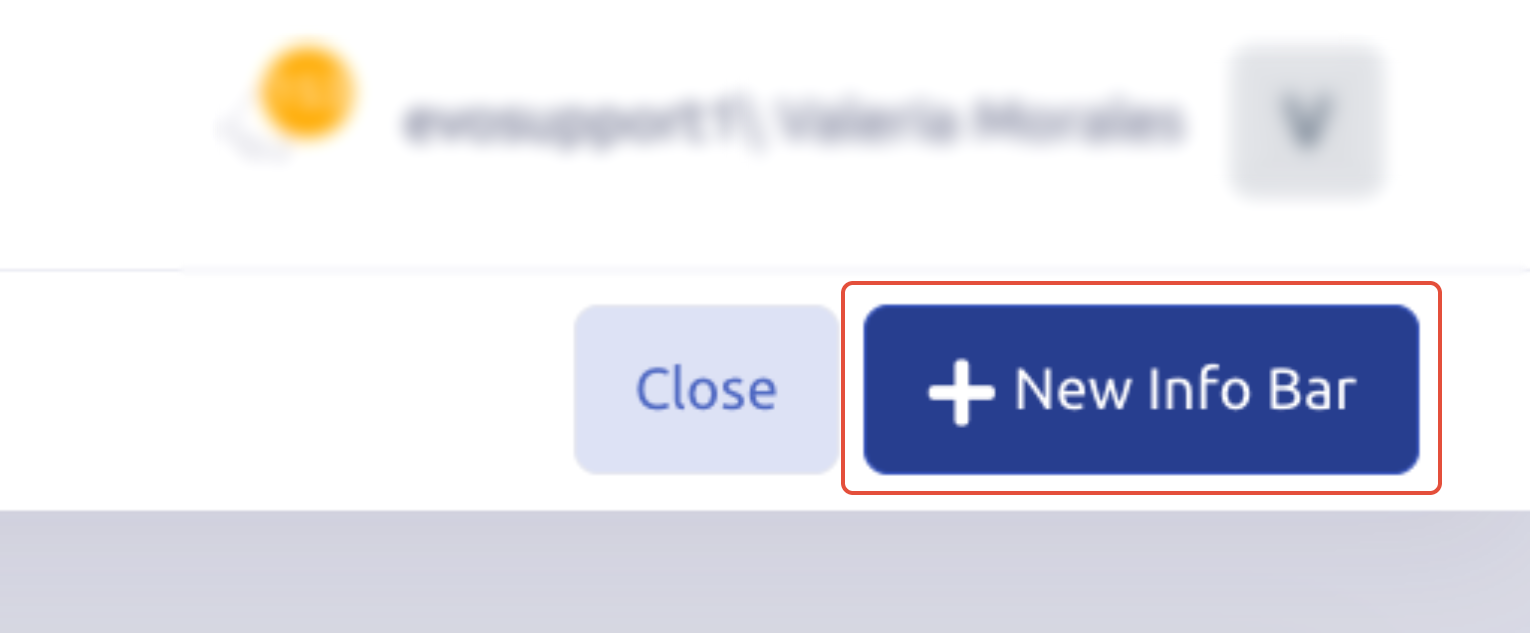
- If the field does not yet exist, click + New Info Bar in the top right corner.
- Enter the required information, set the Left and Width values, check the Print box, and click Save.
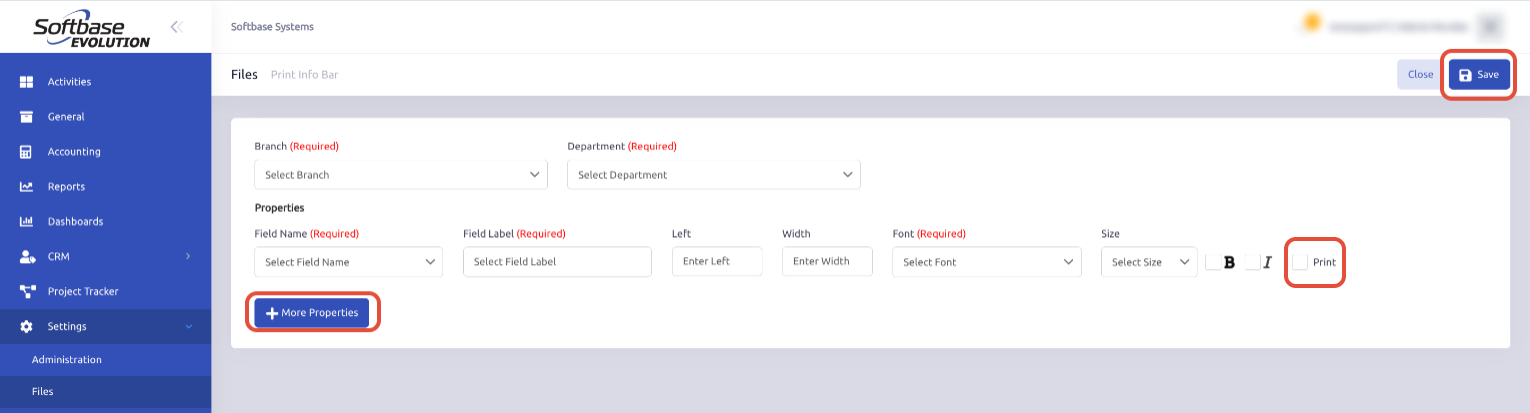
- The new field will now display on invoices according to the parameters you set.
Note:
Only authorized users should modify these settings to prevent printing errors.
Changing the Left or Width of one field does not adjust the other fields set to print. It is recommended to view the other field values and make adjustments to others as needed.
Make sure your Role has the Print Info Bar permission enabled under the File folder if you want to make changes.
Was this article helpful?
That’s Great!
Thank you for your feedback
Sorry! We couldn't be helpful
Thank you for your feedback
Feedback sent
We appreciate your effort and will try to fix the article