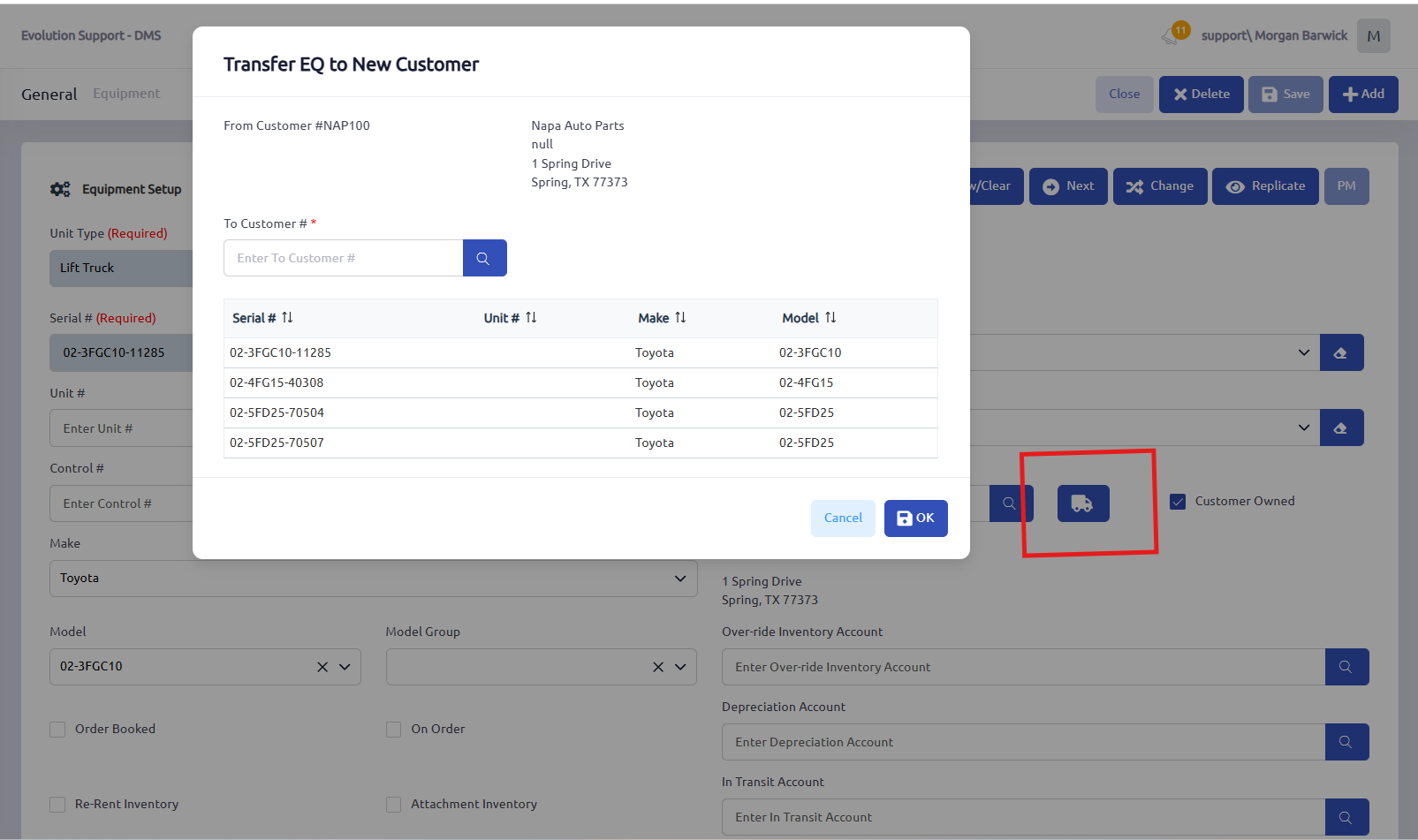
Use Equipment Transfer when every unit assigned to one Ship To customer number needs to move to another. The truck icon transfers all equipment under the source customer number, not just the unit record you open.
- Go to General > Equipment and open a unit assigned to the current Ship To.
- Click the truck icon to open Equipment Transfer. Verify the From Customer number and review the equipment list.
- Enter or search for the destination Ship To customer number in To Customer. Check the displayed customer details to make sure you selected the right location
- Click OK and confirm the transfer. Afterwards, check that the units appear under the destination Ship To.
***Important: Do not use this option if only some units at the source Ship To are moving; there is no unit-selection step.
Also, if the units have PM setups, the current transfer logic updates equipment for the entire source customer number but updates PM references only for the serial number of the unit opened and additional updates may be needed.
Was this article helpful?
That’s Great!
Thank you for your feedback
Sorry! We couldn't be helpful
Thank you for your feedback
Feedback sent
We appreciate your effort and will try to fix the article