Softbase Evolution Mobile
Setup Guide
Download the app, connect to your company, and sign in on your phone or tablet.
1 Download the app
Open the Apple App Store on your iPhone or iPad, or the Google Play Store on your Android device. Search for Softbase Evolution Mobile and install the app.
The app is available for compatible phones and supported tablets.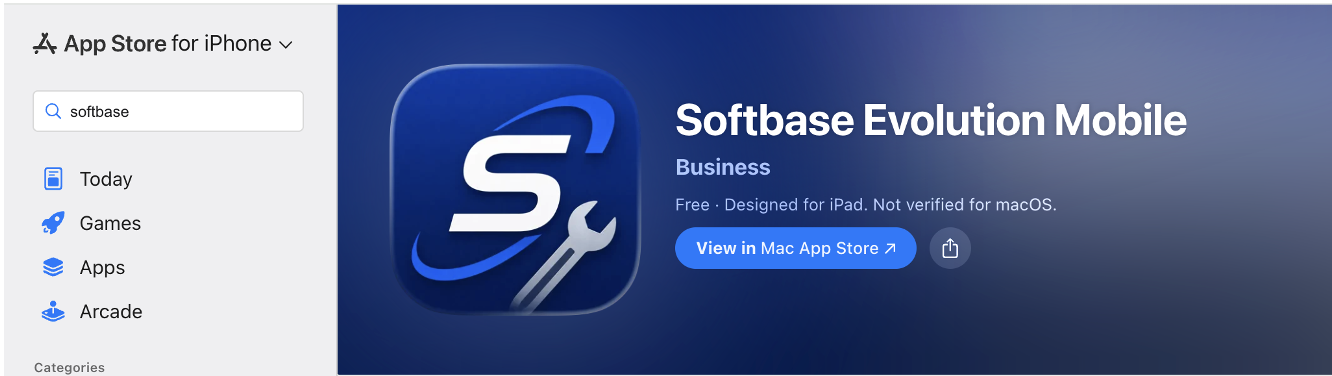
Apple App Store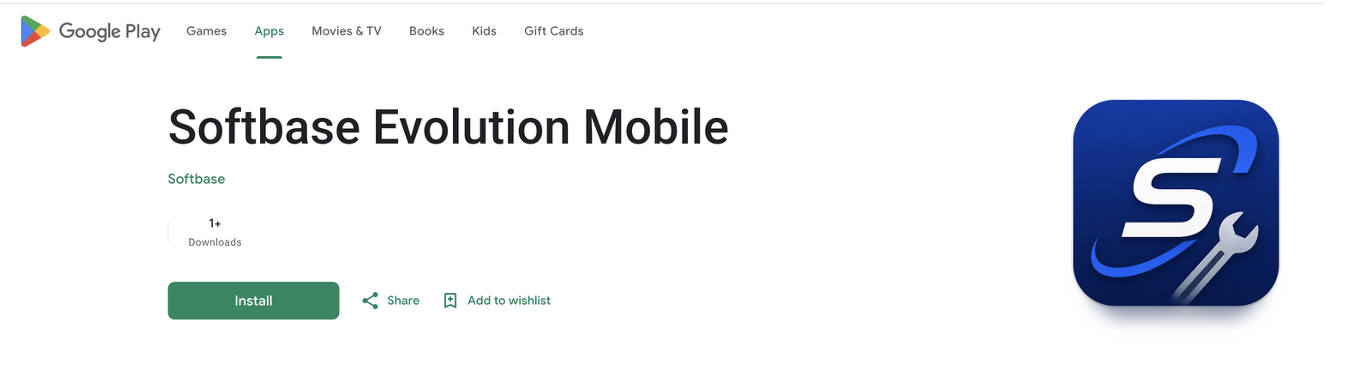
Google Play Store
2 Set up your Company ID
Open the app. In Settings, scroll to Company ID and tap Add Company ID.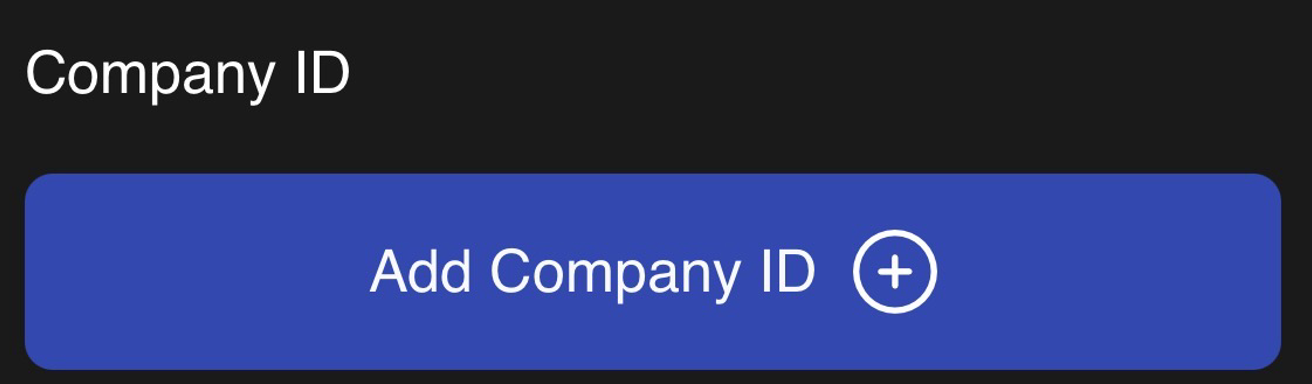
On New API Configuration page, enter your company details:
- Name: Enter your company name.
- Company ID: Enter the ID provided by Softbase. Please contact the Softbase team if you need your Company ID.
Tap Validate Company ID. Once validation succeeds, tap Save to return to the login screen.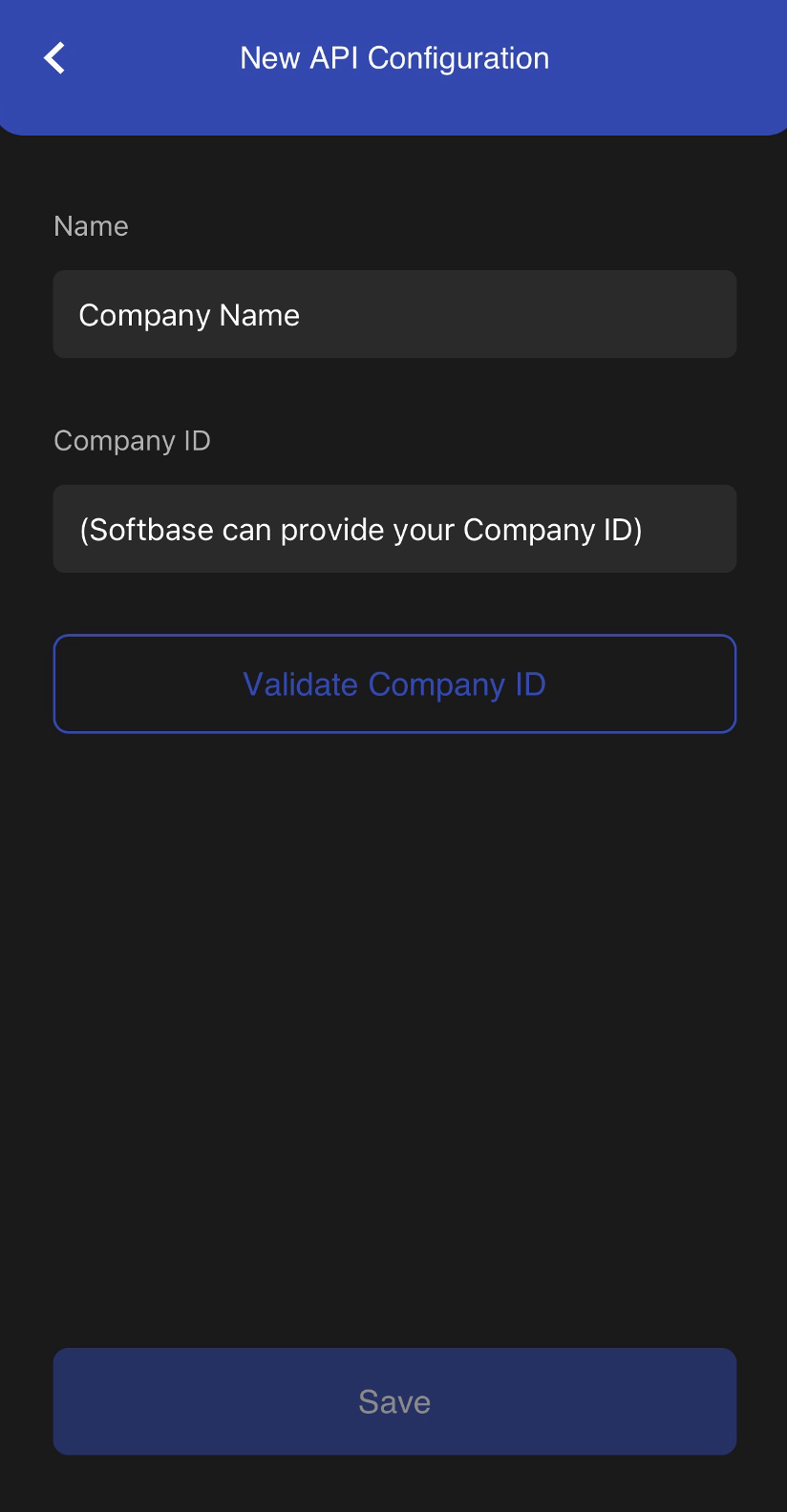
Example screens are shown. Use your own company details.
3 Sign in
On the login screen, select your saved company name from the Company ID list.
Enter your Username and Password, then tap Login.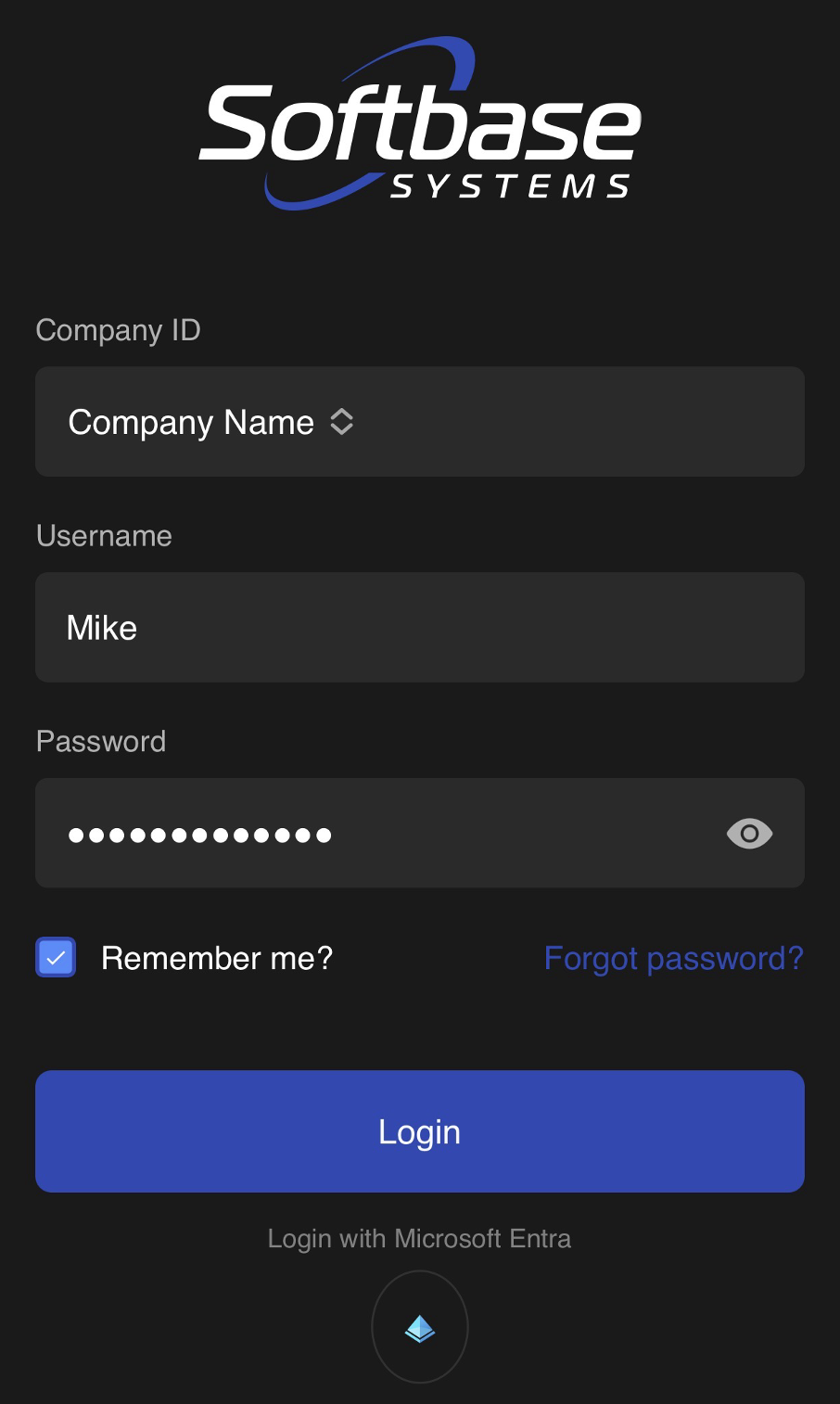
4 Check your settings
After signing in, tap Profile at the bottom of the screen, then open Settings.
Language
The app uses your device language by default. To change it, tap Use Device Language under Language, then choose your preferred language.
Default Warehouse
Under Technician, you can see the Default Warehouse assigned to your account.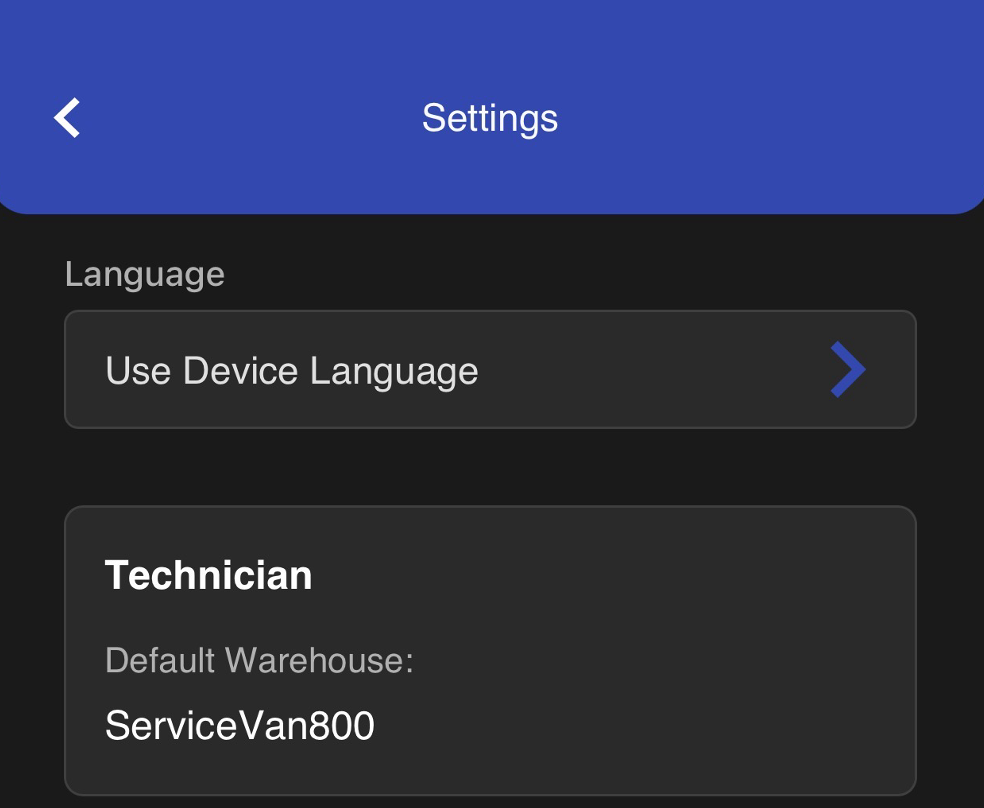
Find your way around
Use the tabs at the bottom of the screen to move around the app.
Home
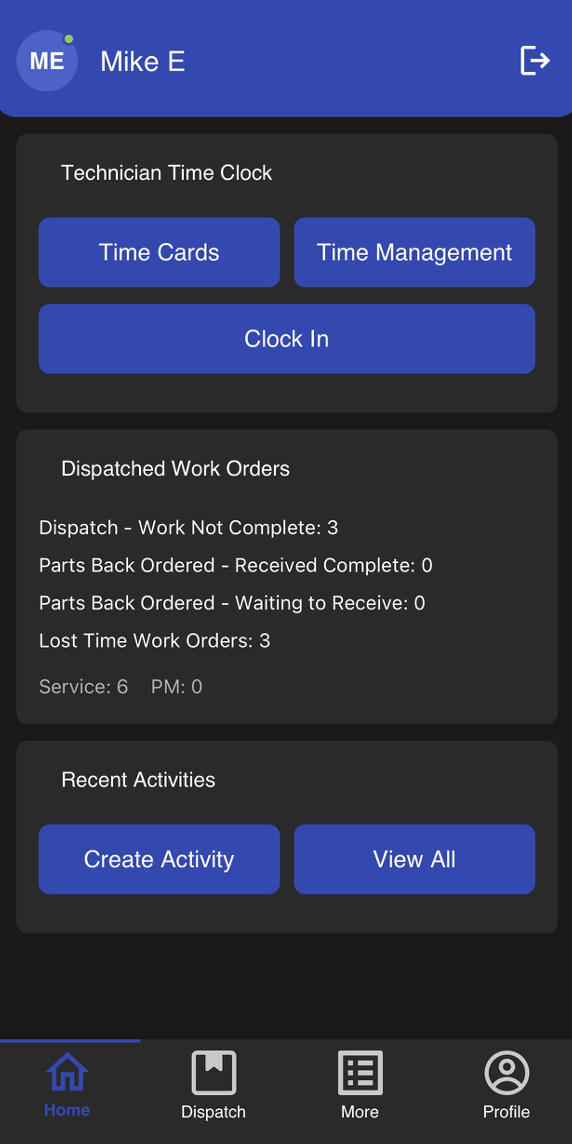
See the technician time clock, a summary of dispatched work orders, and recent activities.
Dispatch
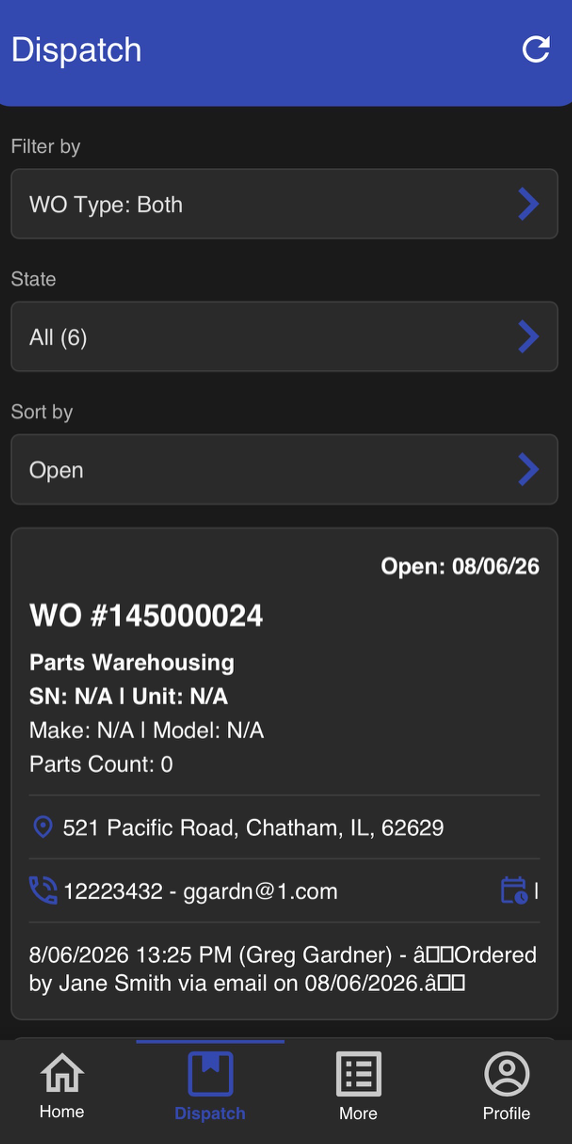
View the work orders that are dispatched out to you. Tap a work order to open it.
More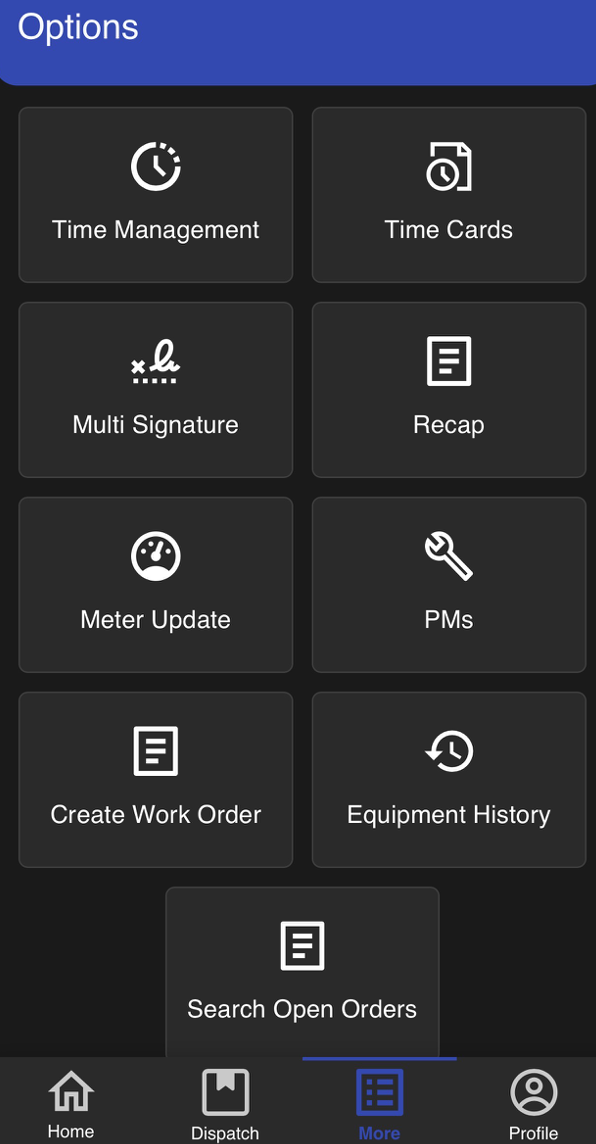
Open extra tools such as Time Cards, Time Management, Equipment History, and Search Open Orders.
Work order basics
Start by opening a work order from Dispatch. Its tabs include Details, Parts, Labor, and Comments.
Add parts: Open Parts and tap New Part.
Record labor: Tap Clock On, then choose Clock onto Work Order for job time or Travel to Customer for travel time. View labor information on the Labor tab.
Add comments: Open Comments and tap Add comment. Categories include Public, Private, and Additional Work.
For help with your Company ID or app setup, please contact the Softbase team.
Was this article helpful?
That’s Great!
Thank you for your feedback
Sorry! We couldn't be helpful
Thank you for your feedback
Feedback sent
We appreciate your effort and will try to fix the article