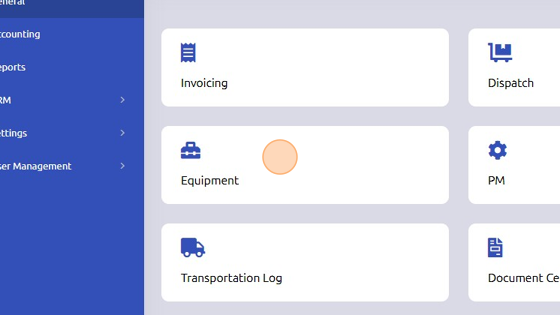
1. Open Equipment from General page.
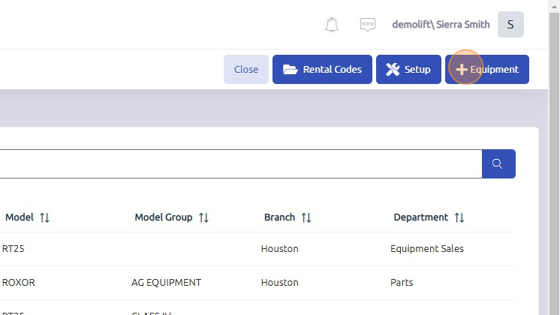
2. Click here to add equipment to database.
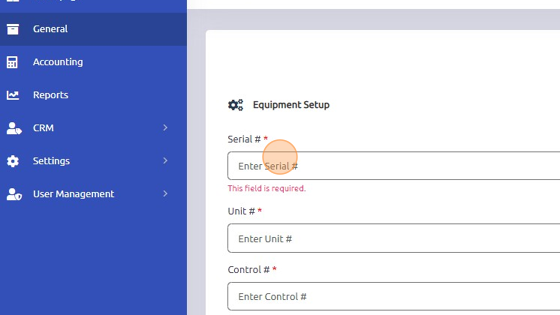
3. Because the serial number is a required field, if you do not know the serial number of the unit you are purchasing, we recommend simply using the control number as the serial number as a temporary placeholder until the serial number is provided. Using the control number as the serial number allows you to find the equipment record in question easily so you can add/update the serial number later when it becomes available.
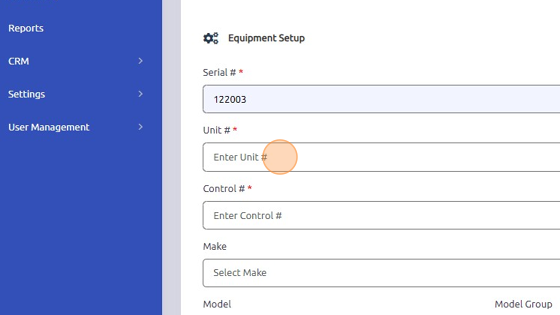
4. Enter Unit # and Control #; make sure they match for accounting purposes.
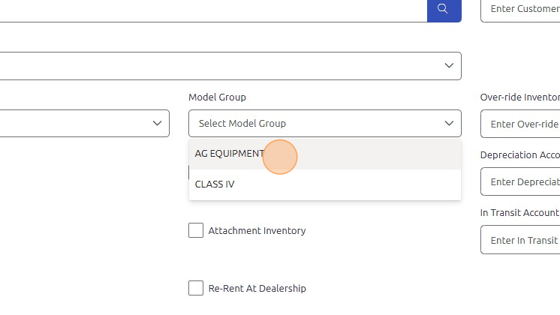
5. Select Make, Model, and Model Group from dropdowns.
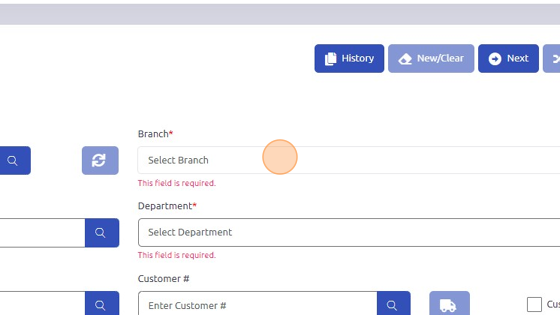
6. Select Branch and Department from dropdowns.
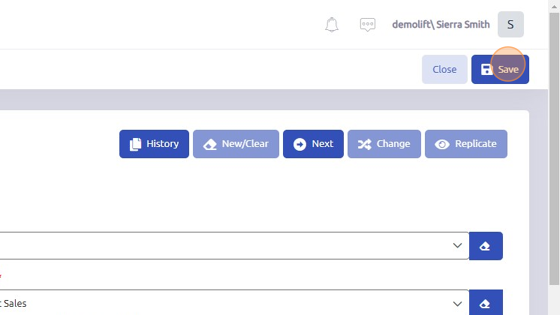
8. Click "Save" to add dealer owned equipment to database.
9. When the serial number for the unit is known, navigate back to the equipment record. Click Edit.
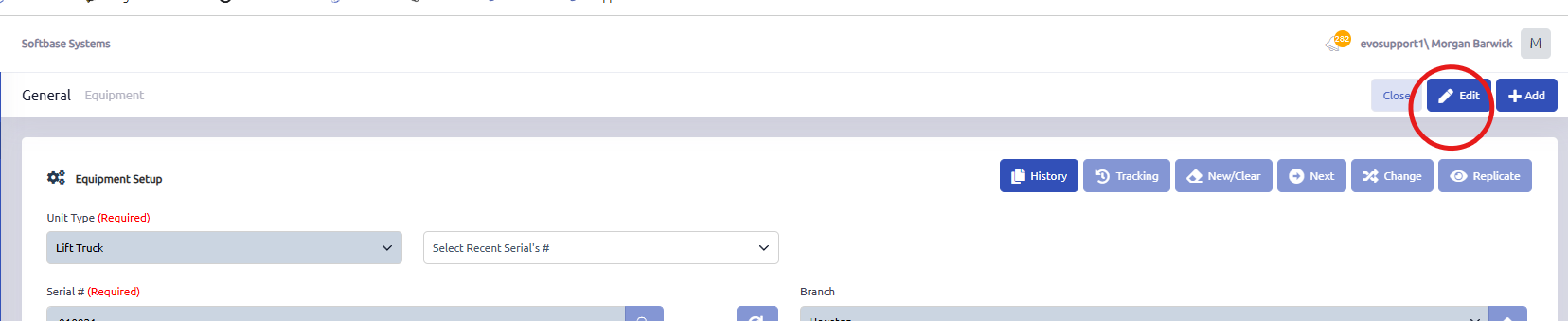
10. Click on Change to change the serial number.
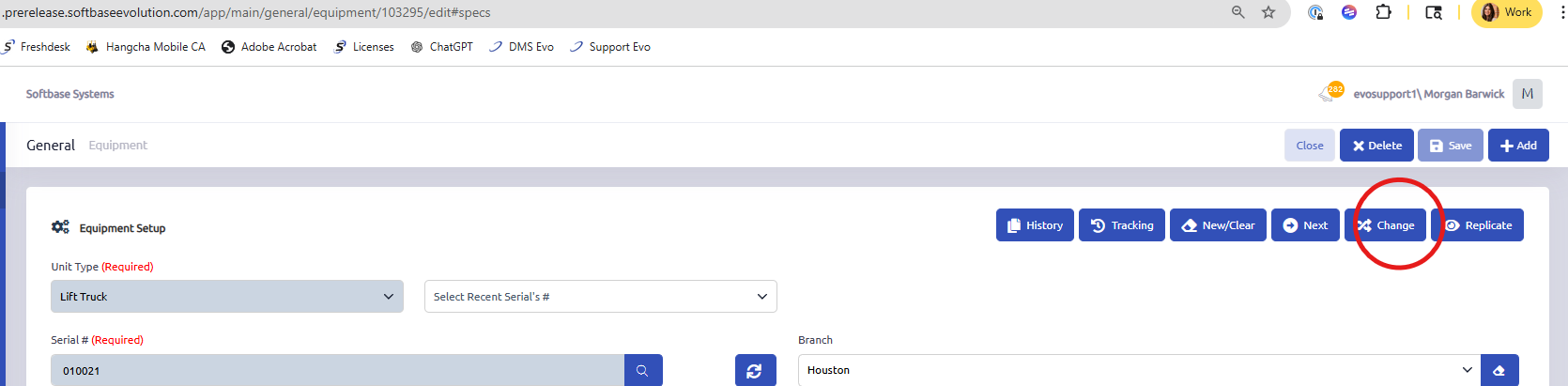
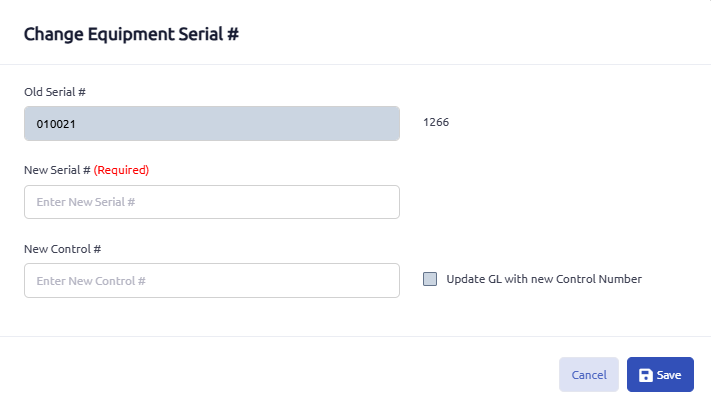
11. Enter the new serial number to be assigned to the unit and save.
Was this article helpful?
That’s Great!
Thank you for your feedback
Sorry! We couldn't be helpful
Thank you for your feedback
Feedback sent
We appreciate your effort and will try to fix the article