1. Click "Add Equipment" in the Equipment Program.

2. Enter in the Required Information for the Equipment Record: Serial Number, Unit Number, Control Number, Branch, Department
If you would like the system to assign the information for Serial Number, Unit Number, and Control Number Click "Next" from the toolbar to generate the number for those fields.
**This information can be overridden if you only want to use the assigned number for one or two of those fields.
This process is ideal to be used when quote or ordering a unit that is being built and the serial number is not known at the time of adding the piece of equipment.
Once the serial number is known or established you can use the change serial # button in the toolbar to update the serial number to the correct one.

3. Select the correct branch and department for new equipment inventory.

4. Enter the make and model.

5. The "On Order" and "Order Booked" checkboxes are used to indicate the status of a piece of equipment in relation to its order and sale process:
"On Order" Check Box:
- Purpose: Indicates that the unit is still on order with the supplier and has not yet been received.
- Suggested Usage: Check this box when you have placed an order for a piece of equipment but have not yet received it. This helps in tracking the status of incoming inventory and managing expectations for delivery.
"Order Booked" Check Box:
- Purpose: Shows that the order has been confirmed and the equipment is sold to a customer.
- Suggested Usage: Check this box when the equipment order has been confirmed and the unit is officially booked for a customer, even if it hasn’t been delivered yet. This status ensures that the equipment is allocated and reserved for the customer.

6. The "Specs," "Add'l Specs," and "Custom" tabs are used to enter and manage detailed information about a unit. These are not mandatory fields.

7. Under the "Dates" tab. The order date can be entered using the calendar function to reflect the date the unit was placed on order.
Dealer acquisition date and received dates are populated based on the purchase order number associated with the equipment’s control number. The acquisition date can be manually updated if the unit was physically received on a different date than the purchase order.
Customer acquisition date is populated based on the date of the equipment sale invoice with the equipment’s control number. These are the only date fields that are automatically populated based on other programs in Softbase, all other dates require manual entry.
Warranty information can also be entered under this tab.
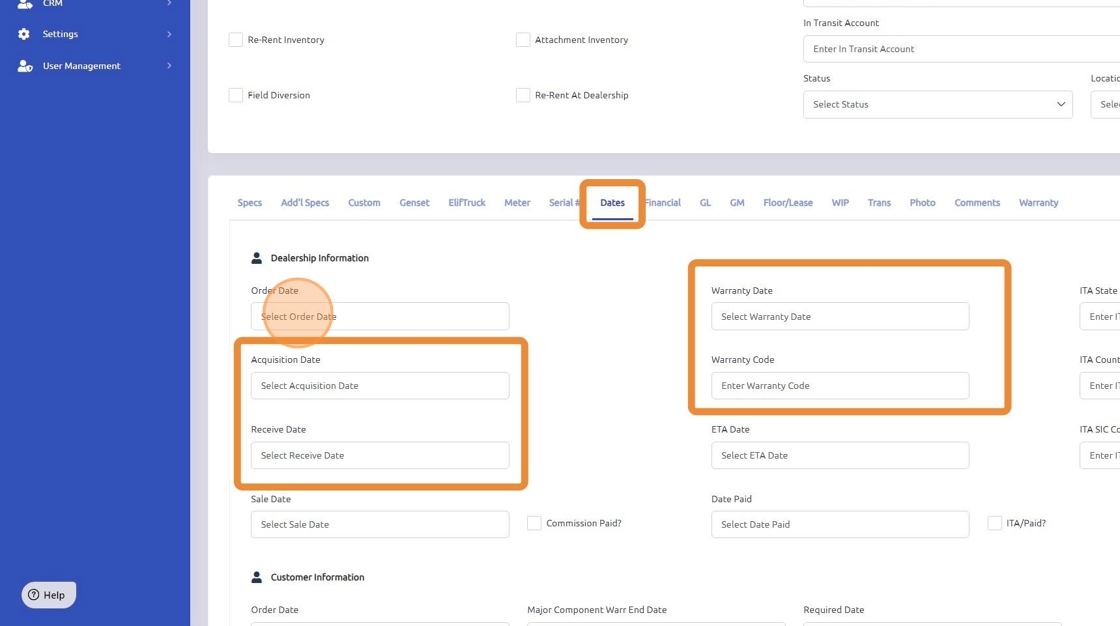
8. In the "Financial" tab, enter the acquisition cost and selling price per your dealer policies.
Click "save" to ensure the equipment is added.

Was this article helpful?
That’s Great!
Thank you for your feedback
Sorry! We couldn't be helpful
Thank you for your feedback
Feedback sent
We appreciate your effort and will try to fix the article