How to Adjust Department Transaction Date Ranges
Overview
Transaction Date Ranges control the period within which detail transactions can be imported/posted for a specific department. Adjusting these date ranges ensures that entries fall within the appropriate accounting periods and prevent unintended postings outside the allowed range.
Steps to Adjust a Department Transaction Date Range
Navigate to the Department Settings:
Go to Settings > Administration > Department.
Select the department for which you want to adjust the date range.
Access the Docs # / Dates Tab:
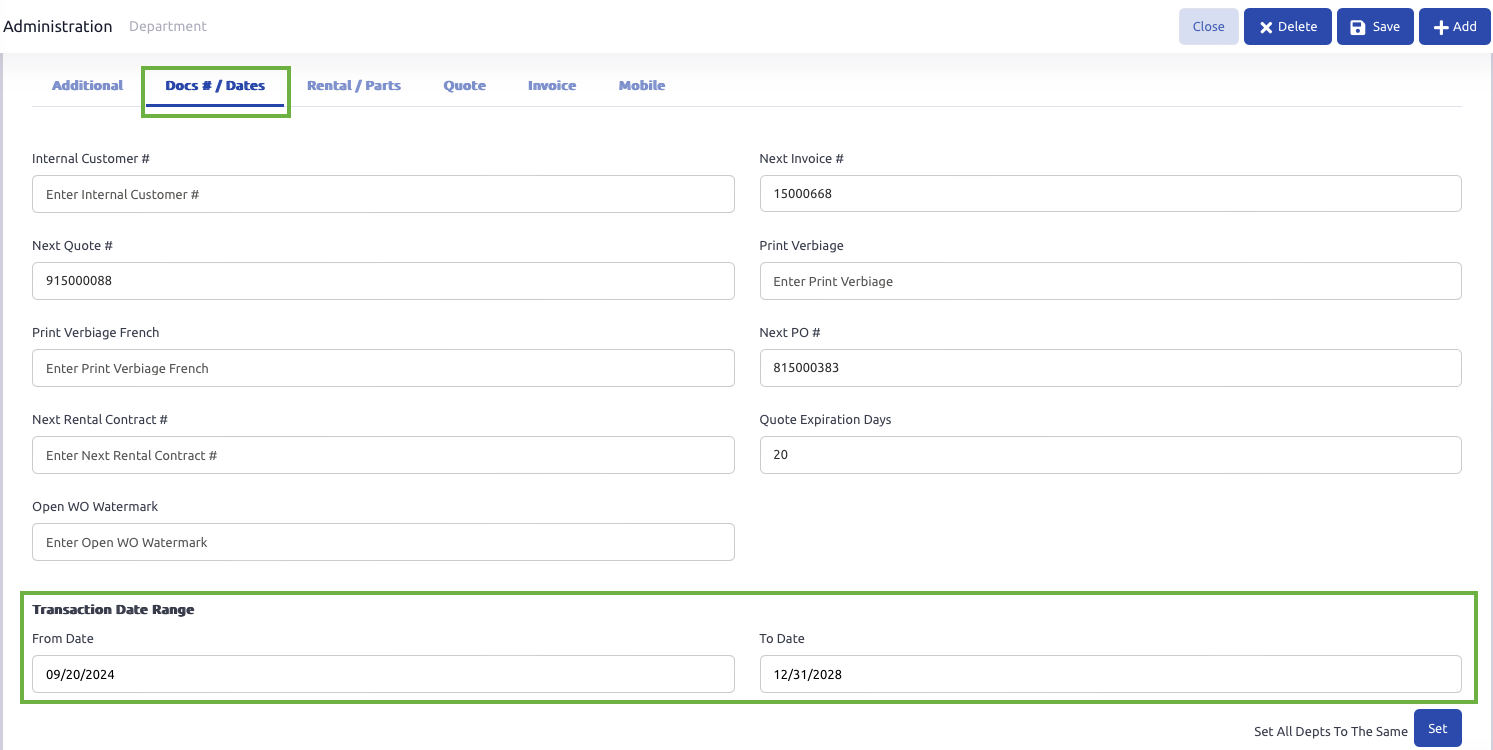
In the department setup, navigate to the Docs # / Dates tab.
Locate the Transaction Date Range section.
Modify the Date Range:
Update the From Date field to set the earliest transaction date allowed.
Update the To Date field to set the latest transaction date allowed.
Click Save to apply the changes. After saving, if you click on the Set button, it will apply the same transaction date range settings to all departments in the system.
Department vs. Company-Wide Transaction Date Range
The Department Transaction Date Range applies only to details transactions posted within the selected department ie: labor.
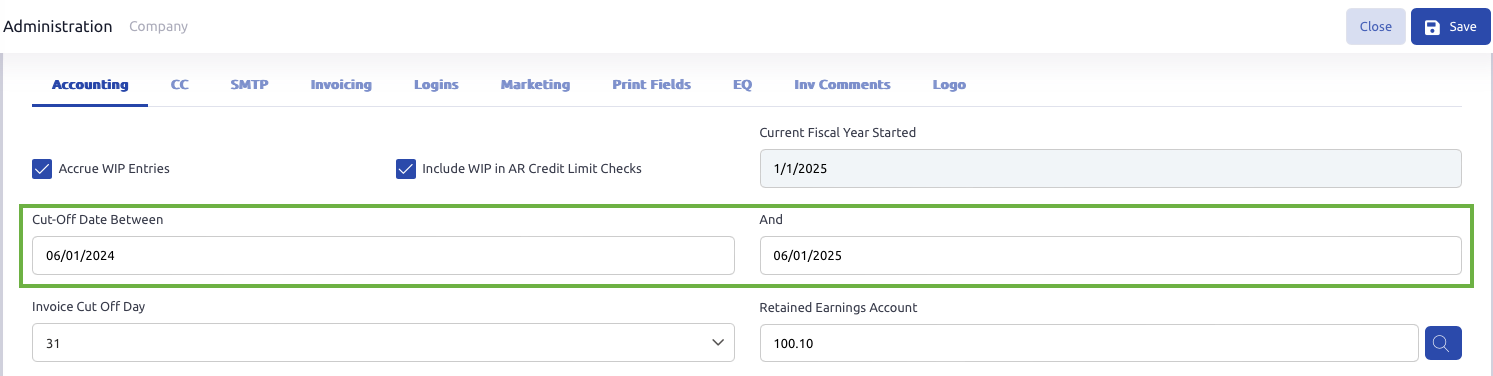
The Company-Wide Transaction Date Range, found under Settings > Administration > Company, sets a transaction date restriction for posting transactions to the GL across all departments.
Was this article helpful?
That’s Great!
Thank you for your feedback
Sorry! We couldn't be helpful
Thank you for your feedback
Feedback sent
We appreciate your effort and will try to fix the article