Parts Currency Setup and Functionality
Summary
The Parts Currency tab is used when a part has a foreign/source currency cost, while the dealership still operates in its base currency.
The example used here is a Mexican based dealership that uses MXN as its home currency but purchases certain parts from a supplier that prices those parts in USD.
In this workflow, the system can:
Store the part’s regular cost in the dealership’s base currency
Store the part’s foreign/source cost on the Currency tab
Use the foreign/source cost in purchasing workflows
Continue using the base currency cost and list values when selling the part
Display the customer-facing invoice in a foreign currency if the customer/document is set up for foreign currency billing
The most important concept is that Parts Currency and Customer Currency are two separate workflows.
Parts Currency is mainly used for purchasing/source cost tracking.
Customer Currency controls the currency displayed on the customer invoice and AR open item.
For more on Currency Setup and Functionality please reference the following article: https://support.softbaseevolution.com/a/solutions/articles/150000225538/edit?lang=en
Example Used in This Article
This article uses the following example:
| Field | Value |
|---|---|
| Dealership base currency | MXN |
| Foreign currency | USD |
| Exchange Rate | 1 USD = 20 MXN |
| Conversion Rate | 20 |
| Part cost entered/maintained in base currency | 1,000 MXN |
| Part list/sell value in base currency | 1,500 MXN |
In this example, the dealership is based in Mexico and maintains its normal part cost and list values in MXN. However, the part is associated with USD on the Part Currency tab because the part may be purchased or sourced using USD values.
How This Workflow Functions
In this setup, the dealership can maintain the part’s main cost and list values in the base currency while also storing foreign/source values on the Part Currency tab.
The system then uses the part’s currency values mainly in purchasing-related workflows, such as:
Purchase Order cost behavior
Receiving
When the part is sold, the system uses the normal base cost and list values from the Part record.
If the customer is assigned a foreign currency, the customer-facing invoice currency is controlled by the Customer/Document currency setup. The customer invoice currency is not controlled by the Part Currency tab.
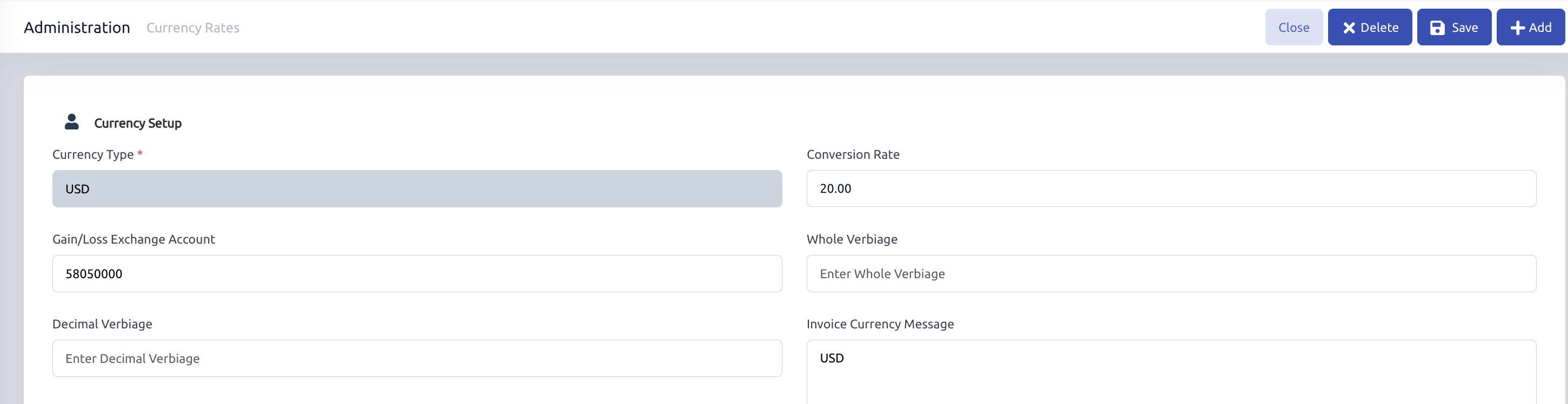
Section 1: Currency Setup
Before using Parts Currency, the foreign currency should be set up in Currency Setup.
Example setup:
| Field | Value |
|---|---|
| Currency Type | USD |
| Exchange Rate | 1 USD = 20 MXN |
| Conversion Rate | 20 |
| Exchange Gains and Losses Account | 58050000 Exchange Gains and Losses |
This setup allows the system to translate between the dealership’s base currency and the foreign currency.
In this example, the base currency is MXN and the foreign currency is USD
Section 2: Part Record Currency Tab
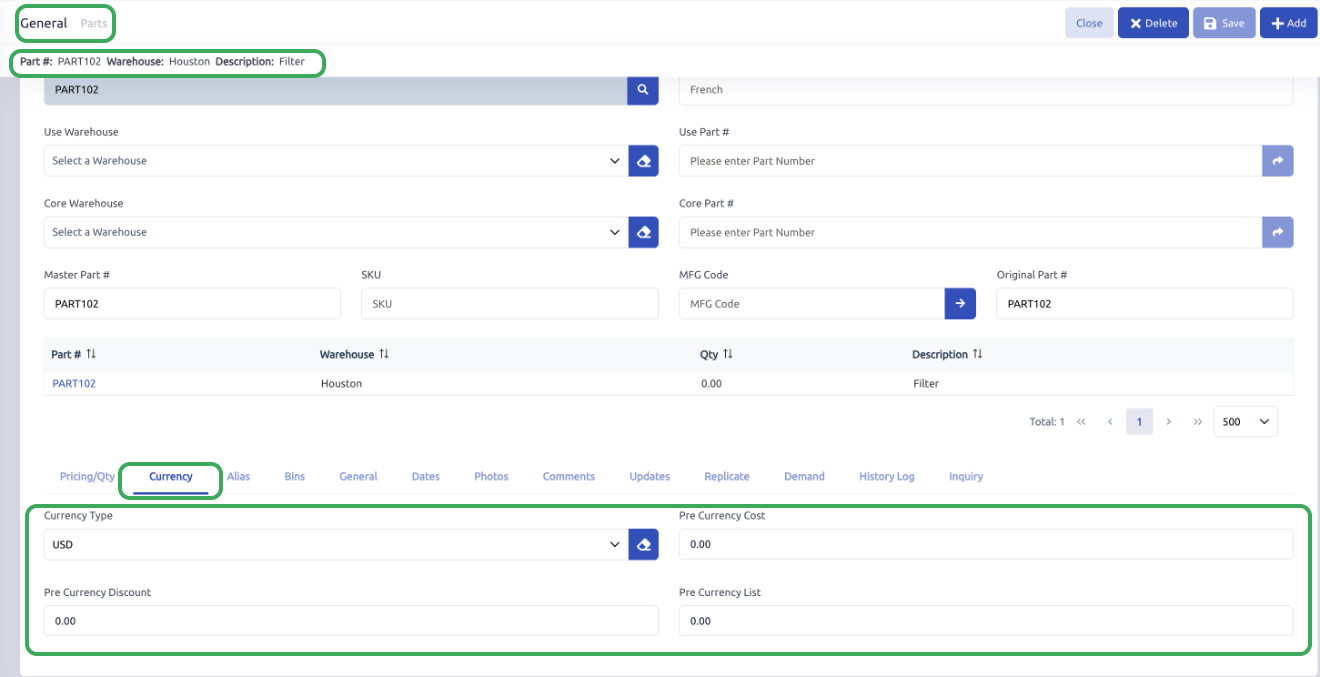
On the Part record, the Currency tab contains the following fields:
Currency Type
Pre Currency Cost
Pre Currency Discount
Pre Currency List
Example:
| Field | Value |
|---|---|
| Currency Type | USD |
| Pre Currency Cost | 50 - USD |
| Pre Currency Discount | 0.00 |
| Pre Currency List | 0.00 |
The Currency Type identifies which foreign/source currency is being used for the part’s pre-currency values.
The Pre Currency Cost stores the foreign/source cost value for the part.
Section 3: What the Parts Currency Tab Does
The Parts Currency tab allows the system to retain the original foreign/source currency values for a part.
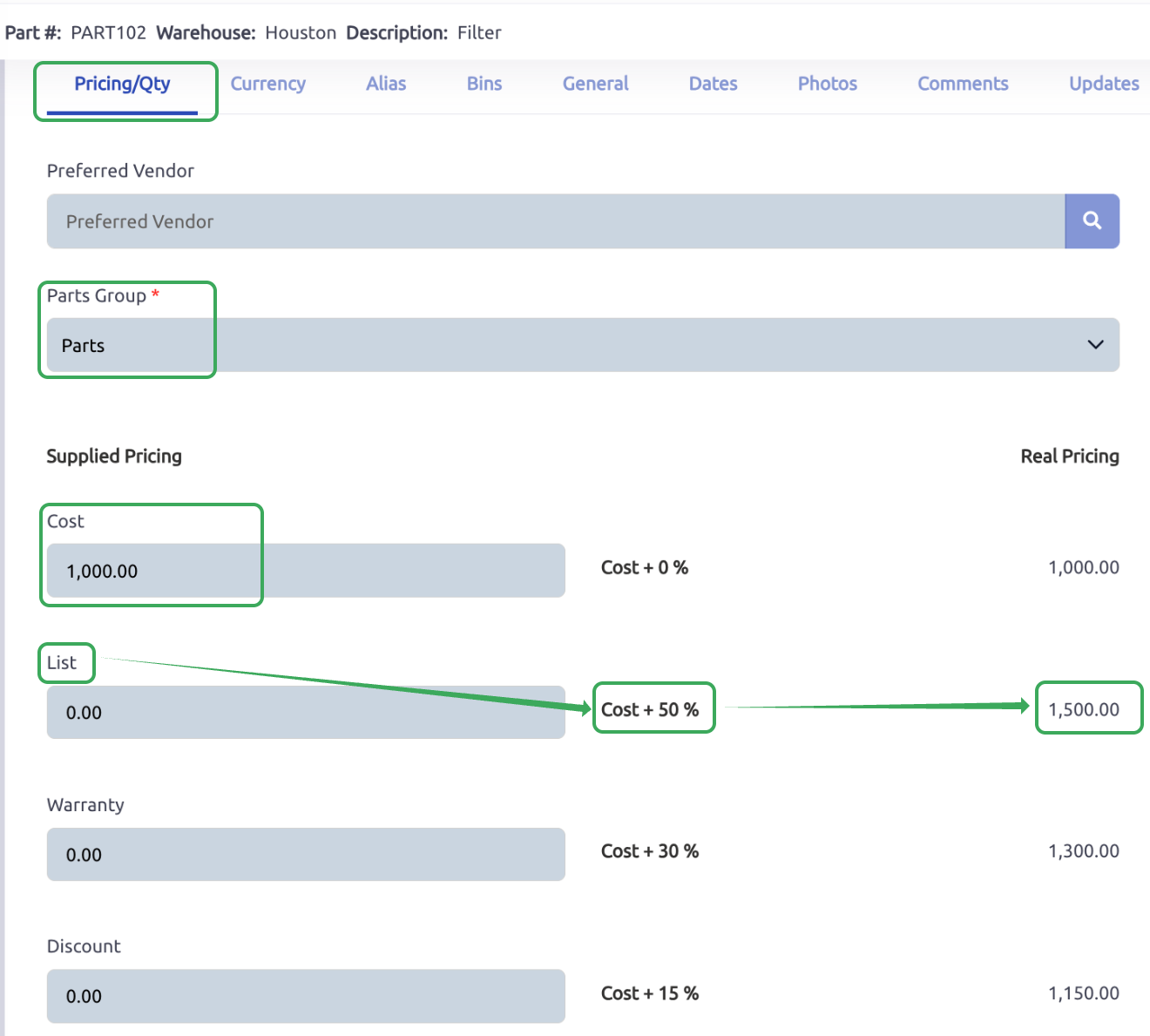
For example, if a part is purchased from a US supplier, the supplier may price the part in USD. The system can store the USD value on the Currency tab while still maintaining the regular part cost in the base currency (In this example MXN) on the Pricing/Qty tab.
Example:
Pricing/Qty tab:
| Field | Value |
|---|---|
| Cost | 1,000.00 MXN |
| List | 1,500.00 MXN |
Currency tab:
| Field | Value |
|---|---|
| Currency Type | USD |
| Pre Currency Cost | 50 |
This means the system can store both values:
| Field | Value |
|---|---|
| Base/system cost | 1,000 MXN |
| Foreign/source cost | 50 USD |
The base cost is used for normal part costing, inventory, and sales cost.
The pre-currency cost is used to retain the foreign/source purchasing value.
Section 4: Purchase Order Workflow Example
Assume a part is assigned to USD on the Currency tab.
And the PO is Open to a Vendor that is also assigned to that same Currency
The user adds the part to a Purchase Order with:
| Field | Value |
|---|---|
| Quantity | 1 |
| Cost | 1,000 MXN |
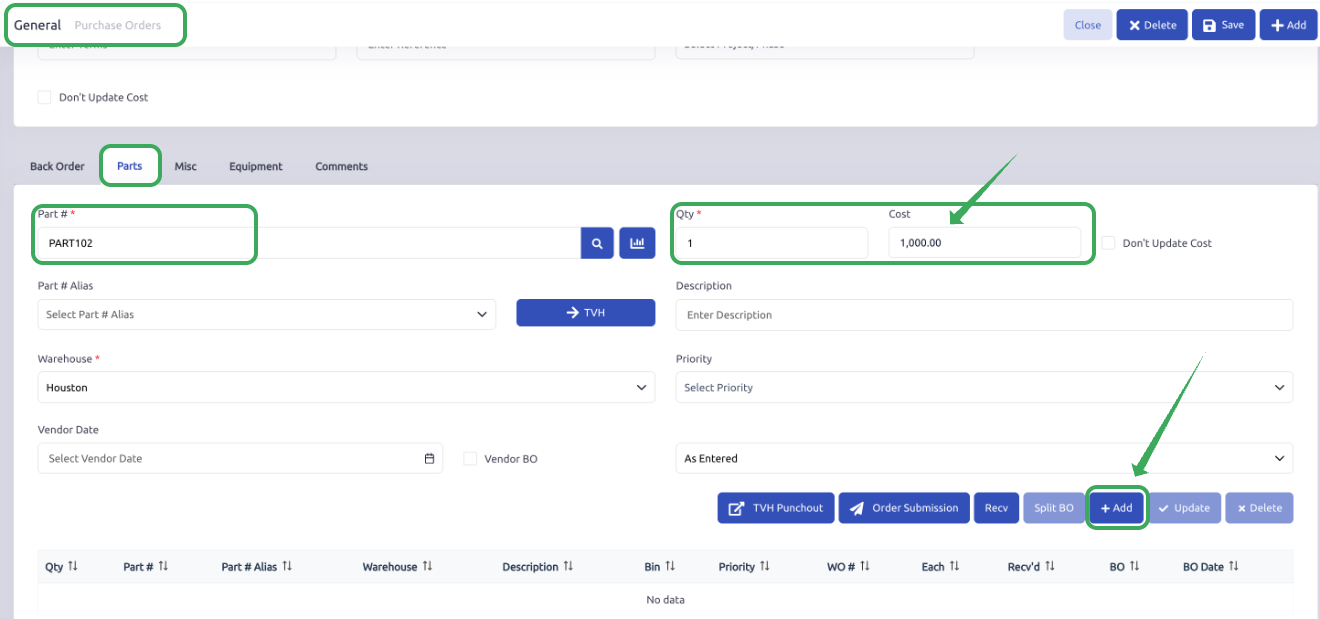
After the part is added, the PO cost may be converted/displayed using the part’s currency setup.
In this example, the PO shows:
| Field | Value |
|---|---|
| Cost | 50 USD |
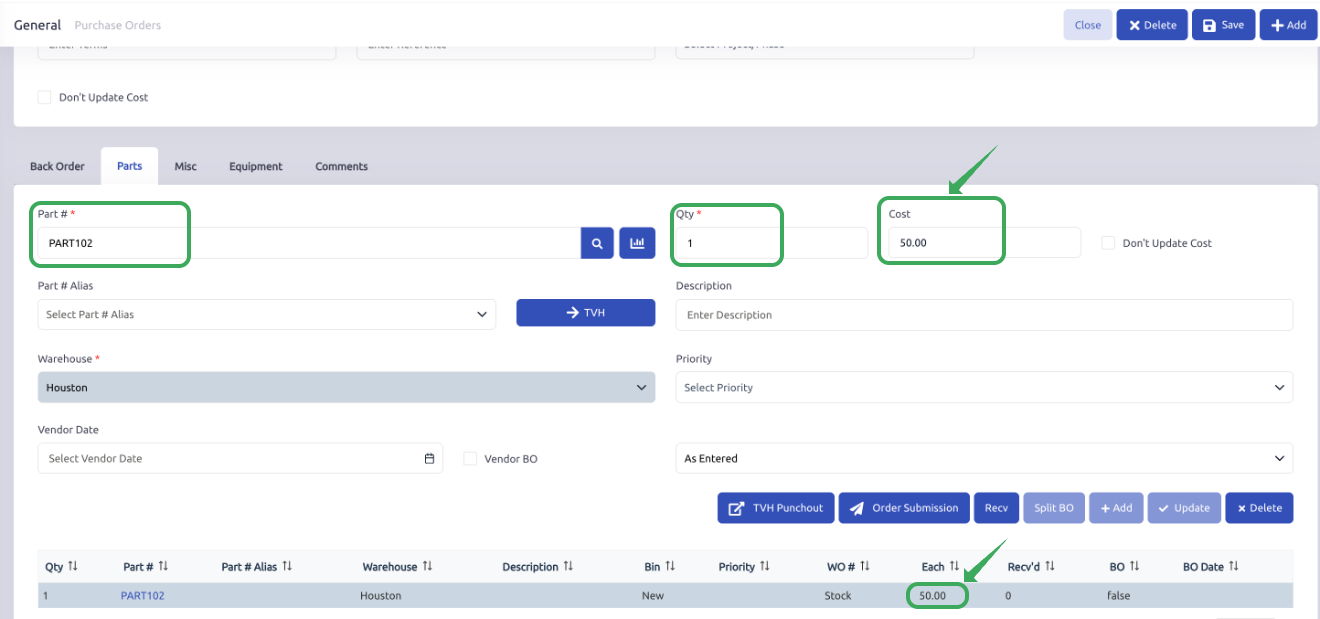
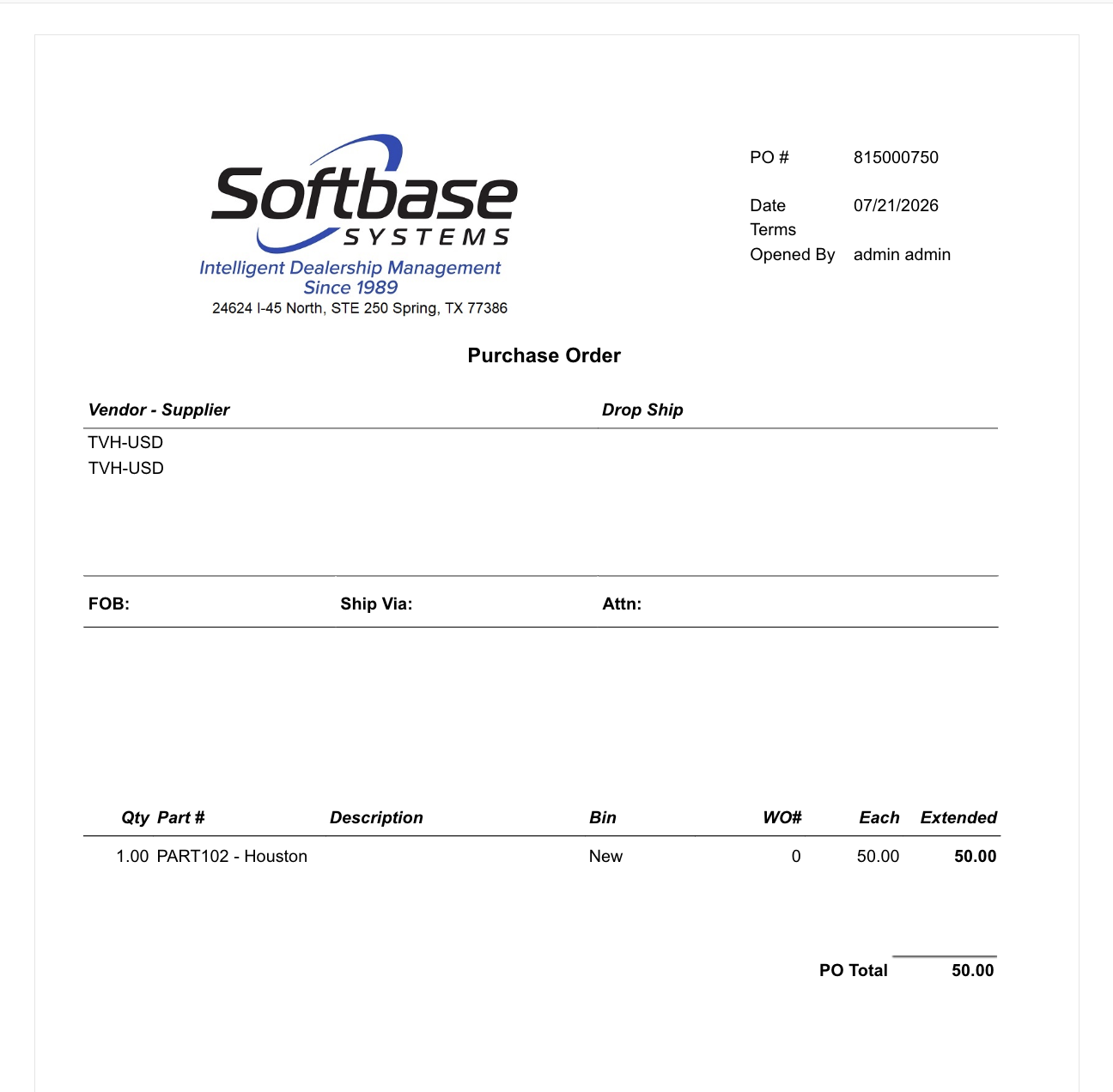
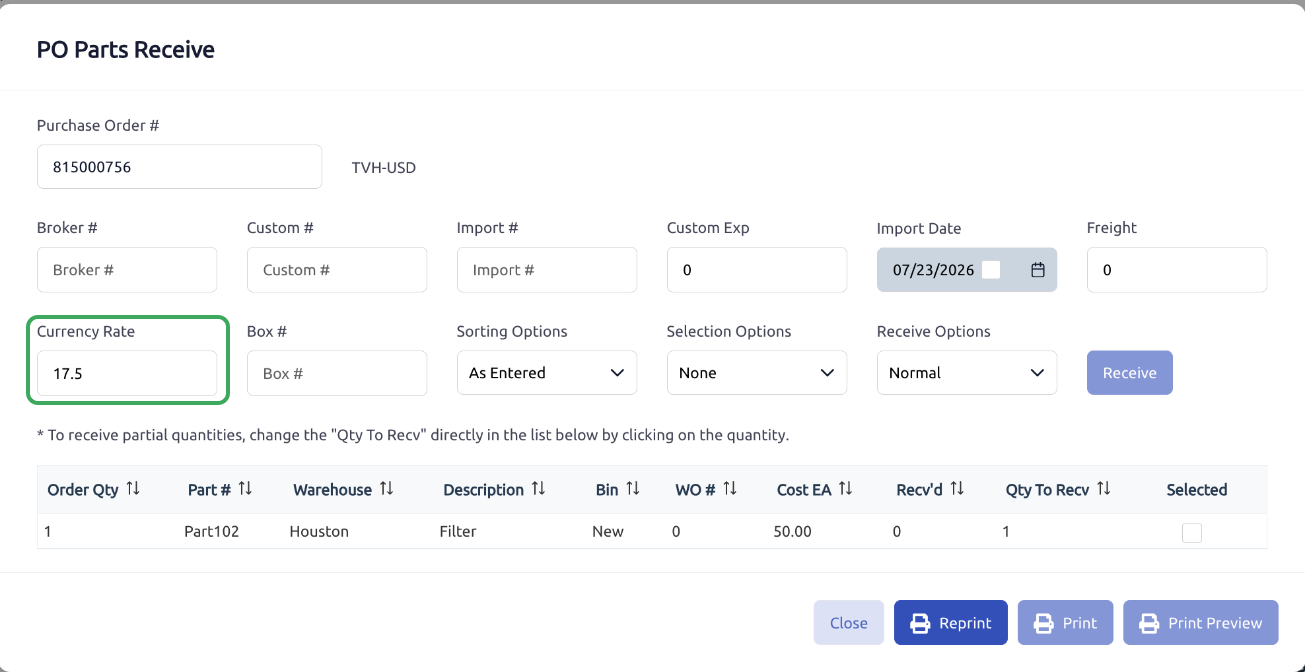
When the part is received through the PO Parts Receive window, the Currency Rate field displays the current exchange rate. The user can review and adjust this rate before receiving the part if needed.
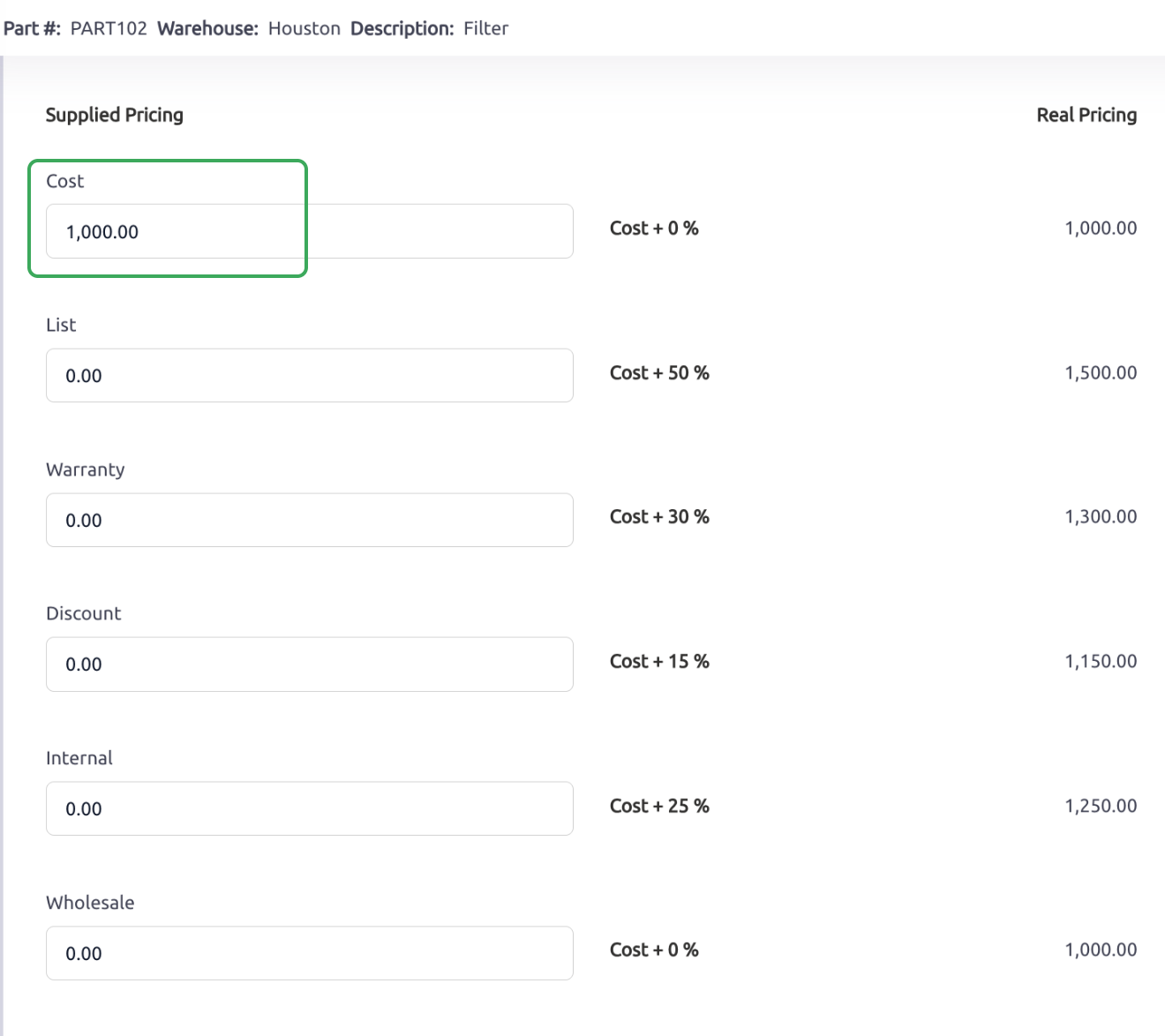
When the part is received, the Part record updated as follows:
Pricing/Qty tab:
| Field | Value |
|---|---|
| Cost | 1,000.00 (MXN) |
Currency tab:
| Field | Value |
|---|---|
| Pre Currency Cost | 50 (USD) |

This means the system keeps the main part cost in the dealership’s base currency while storing the USD foreign/source value on the Currency tab.
The PO-side value represents the foreign/source cost.
The Part record Pricing/Qty cost represents the base/system cost.
Section 5: Selling the Part
When the part is sold, the system uses the normal/base pricing values from the Part record.
Example:
| Field | Value |
|---|---|
| Part Cost | 1,000 MXN |
| Part List/Sell | 1,500 MXN |
When the part is added to a customer document, the system pulls the base list/sell value and base cost from the Part record.
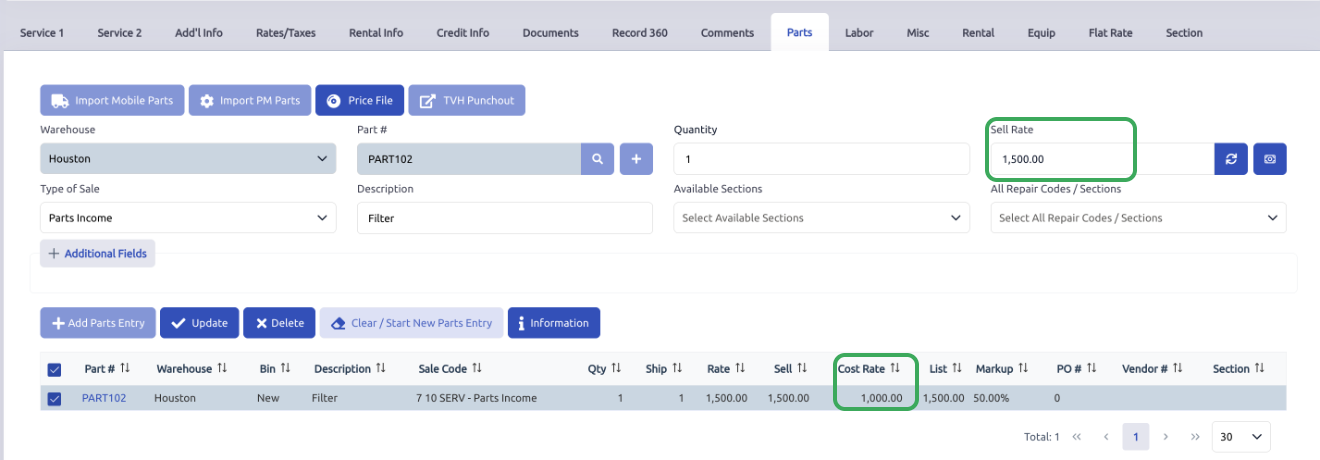
The Part Currency tab does not make the customer invoice sell in USD by itself.
This is important:
A part being assigned to USD does not mean the customer invoice will automatically be in USD.
The customer invoice currency is controlled by the Customer/Document currency setup.
Section 6: Customer Currency Invoice Example
If the customer is set up as a USD currency customer, the customer-facing document preview can display the sell amount in USD.
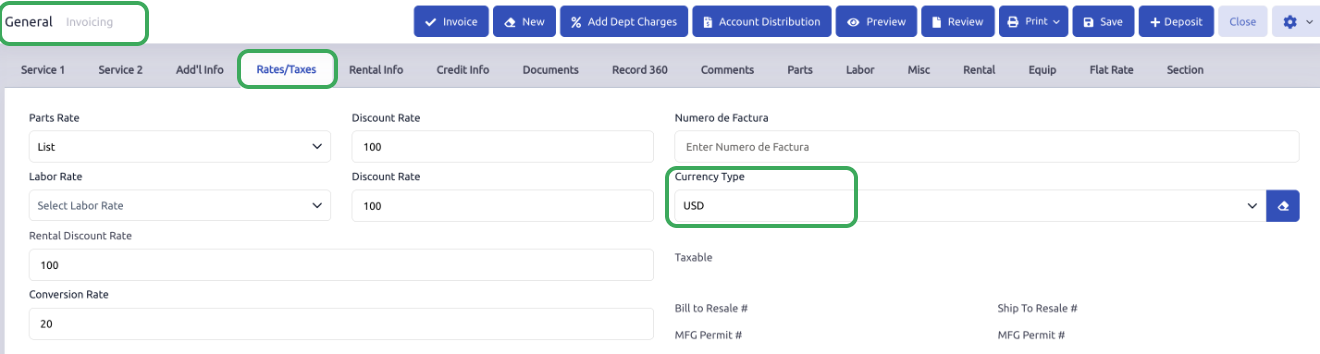
Example:
| Field | Value |
|---|---|
| Base sell value | 1,500 MXN |
| Exchange Rate | 1 USD = 20 MXN |
Customer-facing preview:
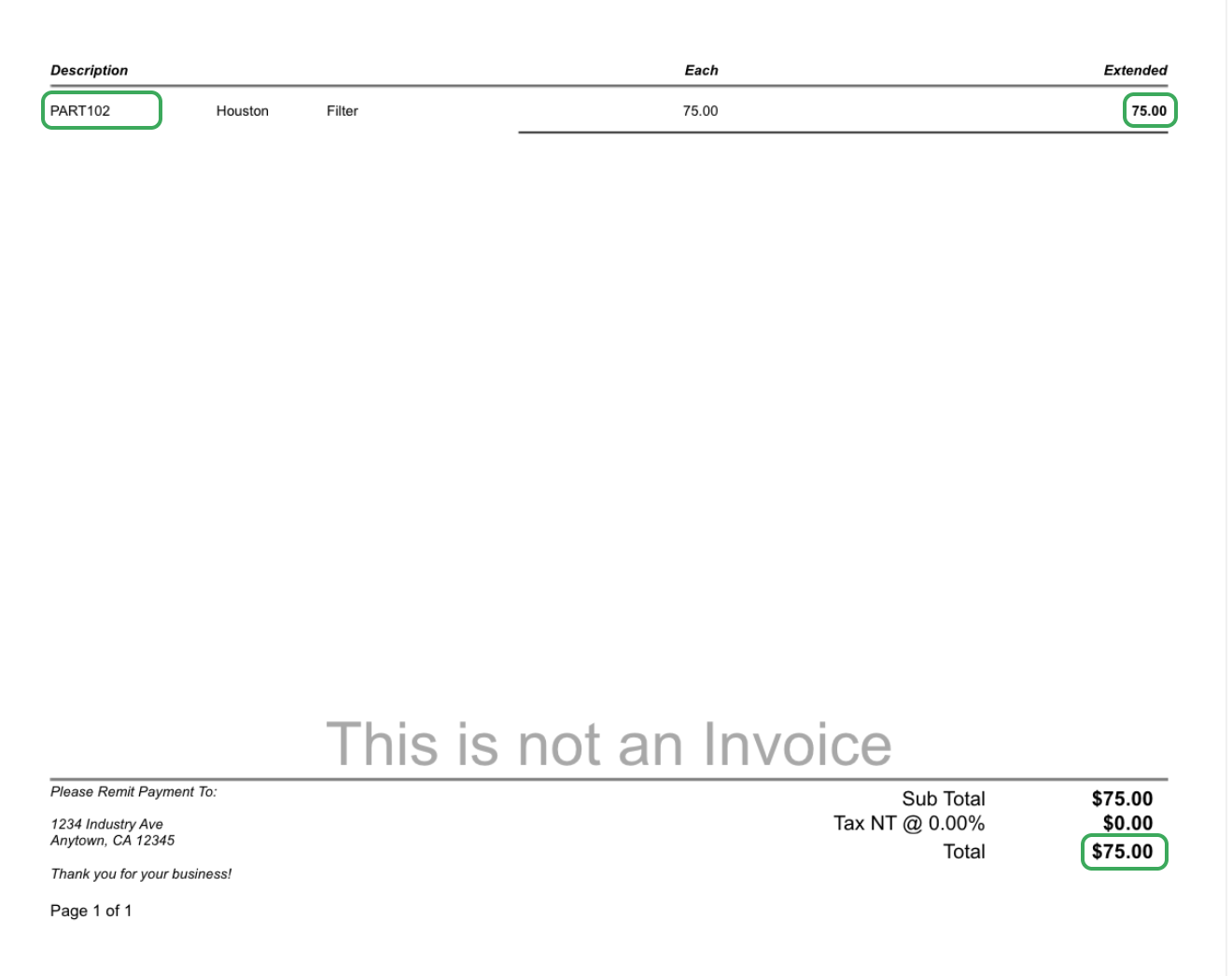
1,500 MXN converts to 75 USD
In the document preview, the customer sees:
| Field | Value |
|---|---|
| Each | 75 |
| Extended | 75 |
| Total | 75 |
This is caused by the customer/document currency setup, not the Part Currency tab.
Section 7: Accounting Distribution Example
Using the same sale example:
| Field | Value |
|---|---|
| Part Cost | 1,000 MXN |
| Part Sell | 1,500 MXN |
| Customer-facing USD amount | 75 USD |
The accounting distribution may show: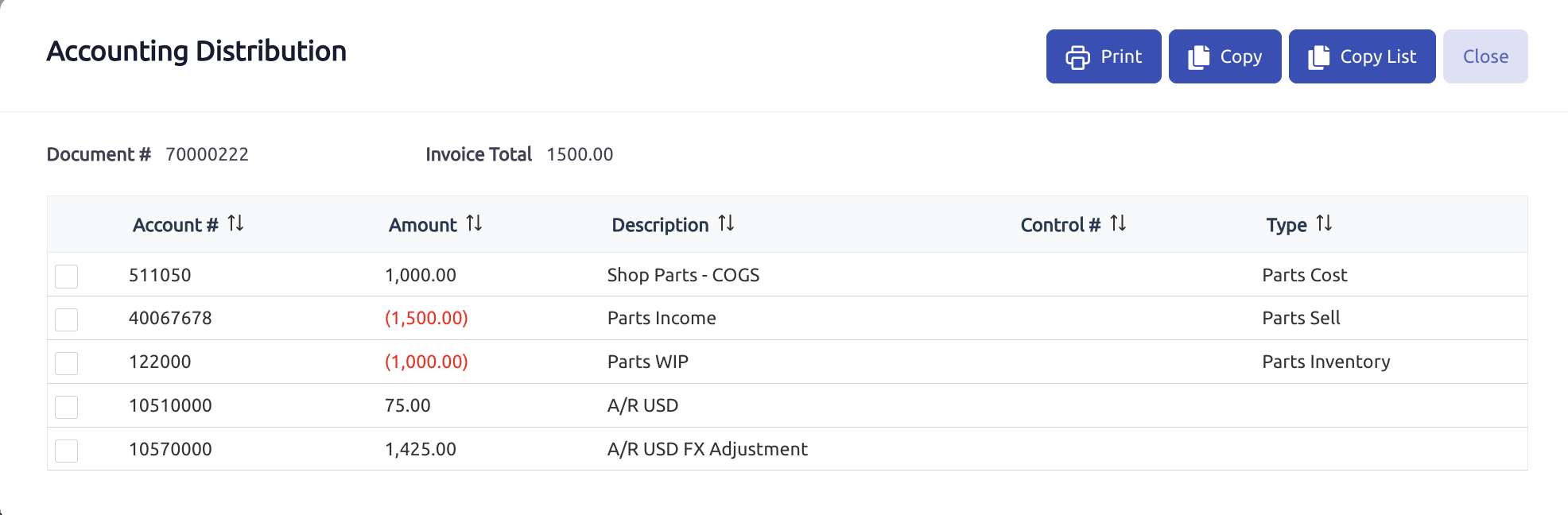
| Account | Amount |
|---|---|
| Parts COGS | 1,000.00 |
| Parts Income | (1,500.00) |
| Parts WIP / Inventory | (1,000.00) |
| AR USD | 75 |
| A/R USD FX Adjustment | 1425.00 |
The sales and cost side remains in base currency:
| Field | Value |
|---|---|
| Revenue | 1,500 MXN |
| Cost | 1,000 MXN |
| Inventory/WIP relief | 1,000 MXN |
The AR side uses the foreign currency AR structure:
| Account | Amount |
|---|---|
| AR USD | 75 |
| A/R USD FX Adjustment | 1425.00 |
Together, the AR USD and AR FX Adjustment accounts net back to the base invoice amount:
75 + 1425.00 = 1,500.00
This follows the same concept used in the customer currency workflow. The foreign AR account reflects the customer’s foreign-currency receivable, while the related FX Adjustment account bridges the difference to the base-currency value. The two accounts should be reviewed together.
https://support.softbaseevolution.com/a/solutions/articles/150000225538/edit?lang=en
Section 8: Parts Currency vs. Customer Currency
Parts Currency and Customer Currency are different.
Parts Currency
Used for:
Foreign/source part cost
Purchasing workflows
PO cost behavior
Price-file imports
Supplier pricing
Storing pre-currency part values
Example:
A part is sourced from the US and has a USD cost.
The Part record stores:
| Field | Value |
|---|---|
| Base Cost | 1,000 MXN |
| Pre Currency Cost | 50 |
Customer Currency
Used for:
Customer-facing invoice currency
AR open item currency
Foreign AR posting
AR FX Adjustment posting
Customer payment/deposit workflows
Example:
A customer is assigned USD
The invoice preview shows:
1,500 MXN sell value translated to 75 USD
Section 9: What the Fields Mean
Currency Type
Identifies the foreign/source currency associated with the part’s pre-currency values.
Example:
| Field | Value |
|---|---|
| Currency Type | USD |
This means the part has USD-related source values on the Currency tab.
Pre Currency Cost
Stores the foreign/source cost of the part.
Example:
| Field | Value |
|---|---|
| Pre Currency Cost | 50 |
This may represent the cost used or retained from a foreign supplier, foreign price file, PO, or receiving workflow.
Pre Currency List
Stores the foreign/source list value of the part when applicable.
This can be used in price-file and conversion workflows.
Pre Currency Discount
Stores a discount value related to the pre-currency structure.
Based on the current workflow review, this field appears to be stored and carried forward, but there is limited evidence that it is heavily used in active calculation logic compared to Pre Currency Cost and Pre Currency List.
Section 10: What This Does Not Do
The Part Currency tab does not control the currency used on AR invoices.
The Part Currency tab does not automatically make the customer-facing invoice display in the part’s currency.
The Part Currency tab does not replace the base Part Cost on the Pricing/Qty tab.
The Part Currency tab does not make sales revenue post in the foreign currency.
Customer invoice currency is controlled by the Customer/Document currency setup.
Section 11: Expected Behavior Summary
When a part is assigned a foreign currency on the Currency tab:
The system can store the part’s foreign/source cost.
The Part record can still maintain the regular cost in the dealership’s base currency.
The PO may display or use the foreign/source cost depending on the purchasing workflow.
After receiving, the Pricing/Qty tab can show the base cost while the Currency tab stores the Pre Currency Cost.
When selling the part, the system uses the normal/base cost and list values from the Part record.
If the customer is a foreign-currency customer, the customer-facing document preview can display the translated foreign amount.
The AR accounting follows the customer/document currency workflow, not the part currency workflow.
Section 12: Example End-to-End Workflow
A Mexico-based dealership uses MXN as its base currency.
The dealership purchases a part that is associated with USD.
The currency setup is:
1 USD = 20 MXN
The part is set up with:
| Field | Value |
|---|---|
| Currency Type | USD |
The part is added to a PO with a cost of:
1,000 MXN
The PO displays:
50 USD
After receiving, the Part record shows:
| Field | Value |
|---|---|
| Pricing/Qty Cost | 1,000 MXN |
| Currency Tab Pre Currency Cost | 50 USD |
The part is later sold using the base list value:
1,500 MXN
If the customer is a MXN customer, the invoice displays the base MXN amount.
If the customer is a USD customer, the document preview displays the translated USD amount:
75 USD
The accounting distribution keeps revenue and cost in base MXN while using the foreign AR and AR FX Adjustment accounts to support the USD receivable.
Key Takeaways
The Parts Currency tab is mainly used for foreign/source purchasing cost tracking.
The main Part Cost remains in the dealership’s base currency.
The Pre Currency Cost stores the foreign/source cost.
The Part Currency Type does not control the customer invoice currency.
Customer invoice currency is controlled by the Customer/Document currency setup.
When selling the part, the system uses the base Part Cost/List values.
If the customer is a foreign-currency customer, the invoice preview translates the base sell amount into the customer’s currency.
The AR foreign currency behavior is separate from the Parts Currency tab.
Was this article helpful?
That’s Great!
Thank you for your feedback
Sorry! We couldn't be helpful
Thank you for your feedback
Feedback sent
We appreciate your effort and will try to fix the article