Steps to update from a 32 bit ODBC connection to a 64 bit ODBC connection
(used with current versions of Softbase)
1. Once you have installed the Softbase Client Application that utilizes the 64 bit ODBC connection, you will need to setup the ODBC driver to allow the Softbase Client to communicate with the Softbase Database using the 64 bit connection
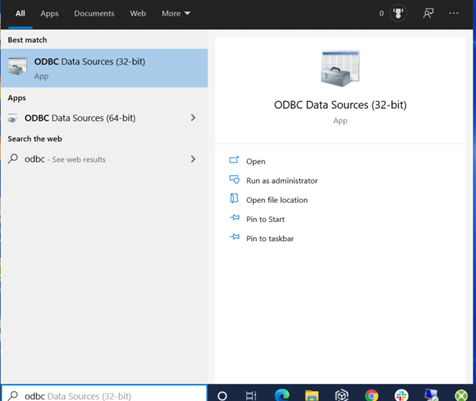
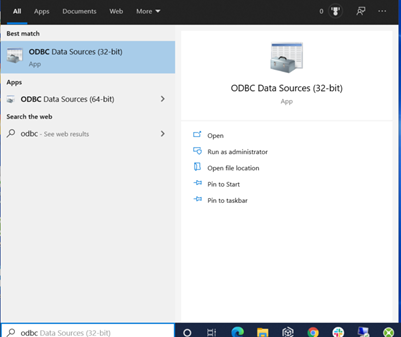
2. Go to Start in Windows and search for "ODBC". You should see the following options
- Make sure you choose ODBC 64-Bit version- The version of the ODBC Drivers should match the version of the Softbase Window Client you installed.
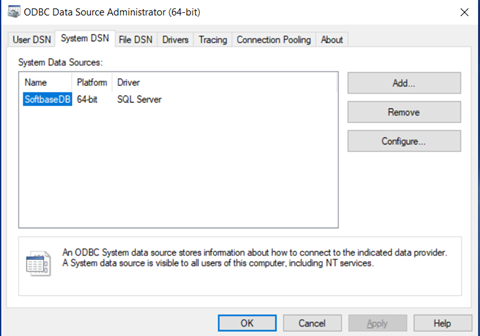
3. Once you open up the ODBC Data Source, go to the "System DSN" Tab and choose the Add Button.
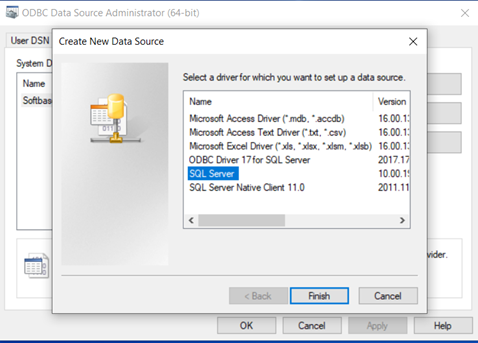
4. Once selecting Add, you will select the "SQL Server" option from the below list, to begin to create a new Data Source
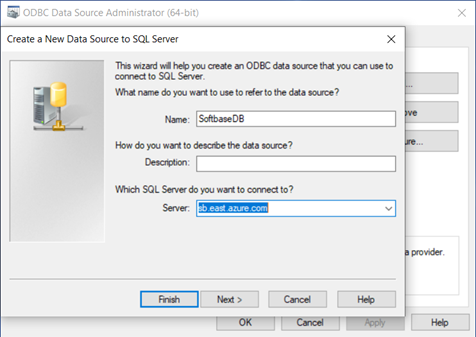
5. After selecting "SQL Server" you will enter the Name, Description and Server you are looking to connect to.
- Name - This is the name of the connection to the SQL database - We recommend using SoftbaseDB
- Description - This is the Description of the connection. You can enter whatever you would like or leave blank.
- Server - This is the Server name of where the Softbase SQL Database is located at. Contact your System Administrator or look at this setup on another user's computer that is running Softbase to get this information. Note... You will need the SQL Username and Password as well to access the database.
6. Once you populate the above information and choose next you will be taken to the next screen.
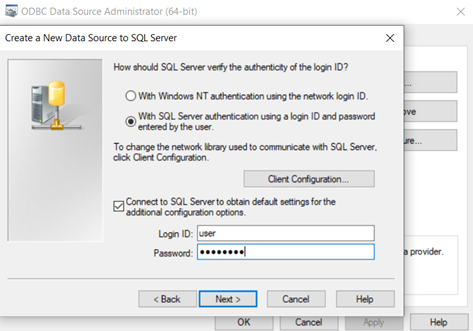
- Change the Radio button to the option to authenticate with SQL Server authentication, not Windows NT.
- Then provide the Login ID and Password for the Softbase SQL Server Database and choose next. This will authenticate the Login and ensure you can access the database. If not you will be provided with an error message and need to contact your System Administrator or Softbase Support.
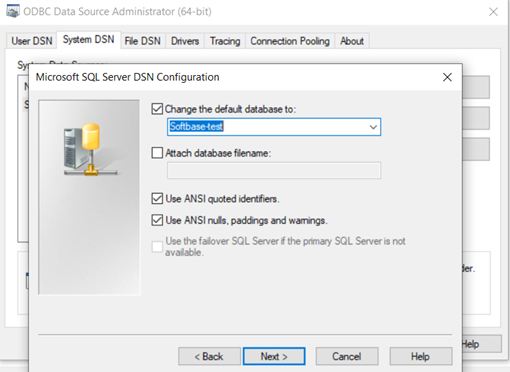
7. Once you authenticate in SQL you will need to ensure that the Default Database dropdown option on the below form is selected to be your Softbase SQL Database.
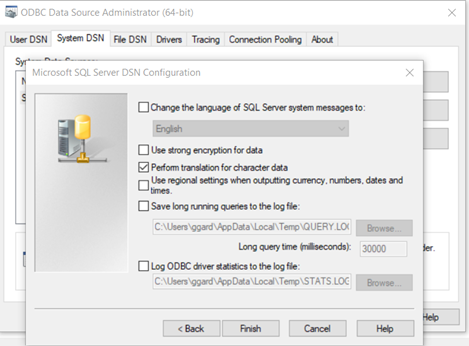
8. Following choosing Next from the above screen you will see the below screen and can choose Finish.
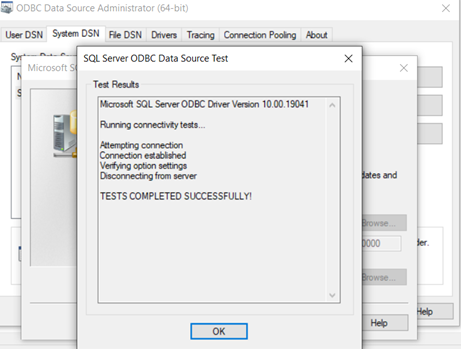
9. After selecting Finish you will see the below screen and you can choose the "Test Data Source" button to ensure the connection is good, otherwise you can choose OK to complete the setup and login to Softbase.
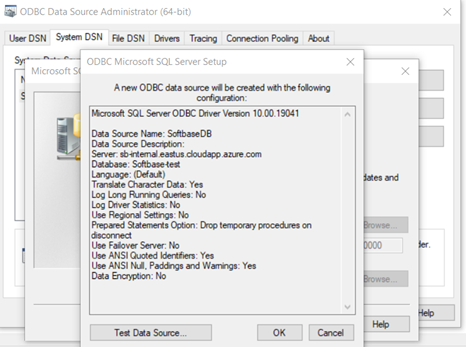
10. If you choose to test the Database Source you would see the following screen which would run the test and show you the results.
****To finish the update, you will then want to navigate back to the start menu and open the 32 bit ODBC connection. You will use the System DSN tab to remove any setups for the 32 bit version connection to Softbase. Once removed, the system will look to the 64 bit version you just set up and allow you to access the 64 bit version of Softbase installed on your machine.
Was this article helpful?
That’s Great!
Thank you for your feedback
Sorry! We couldn't be helpful
Thank you for your feedback
Feedback sent
We appreciate your effort and will try to fix the article